Storefront Enhancements
OTP-Based Login & Registration with Phone Number
You can now offer customers a simpler authentication experience using OTP-based Login and Registration with their Email Address or Phone Number.
Customers can use either Password-Based or OTP-Based authentication, depending on the store’s configured authentication preference, with OTPs delivered through Email or SMS based on the available communication channels.
For Quick Registration, customers can select the OTP-based registration option, enter the required details, and verify the OTP sent to their registered Email Address or Phone Number.
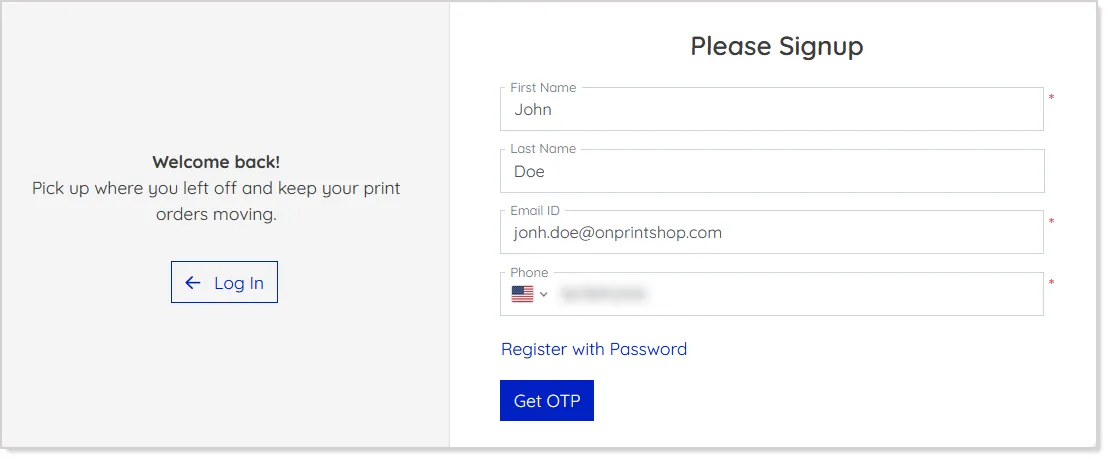
- Once verified, the account is created without requiring a password, and customers can be automatically logged in based on the configured authorization settings.
For Login, customers can authenticate using their Email Address, Phone Number, or Username, depending on the enabled options:
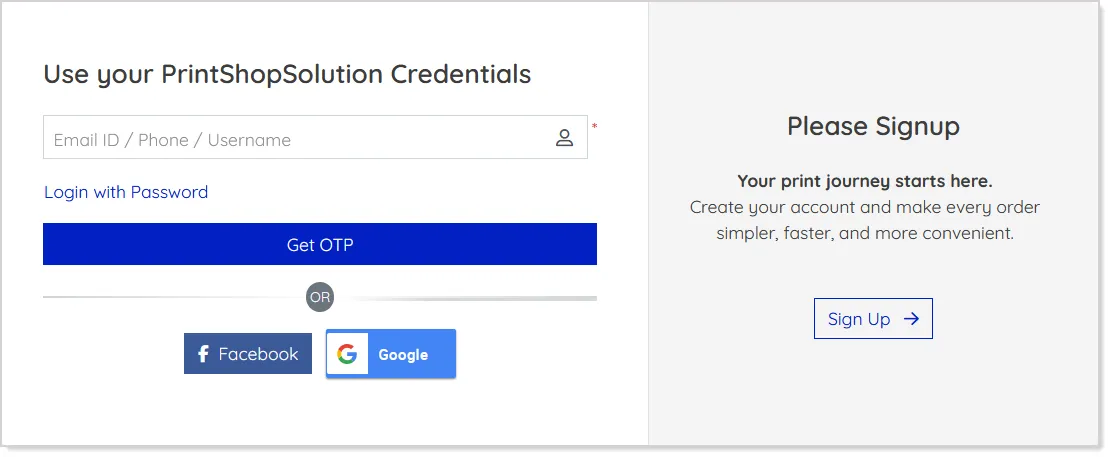
- When phone number login is enabled, the system validates the number and provides the appropriate country code selection.
- After the login details are entered, an OTP is sent through the configured communication channel.
- Successful verification logs the customer in and redirects them to the configured destination.
The Login and Registration pages now feature a cleaner, responsive layout across desktop, tablet, and mobile devices. Customers can also switch between Login and Registration without reloading the page. Existing authentication options, including Password Login, Social Login, Two-Factor Authentication, and Full Registration, continue to work alongside the OTP-based experience.
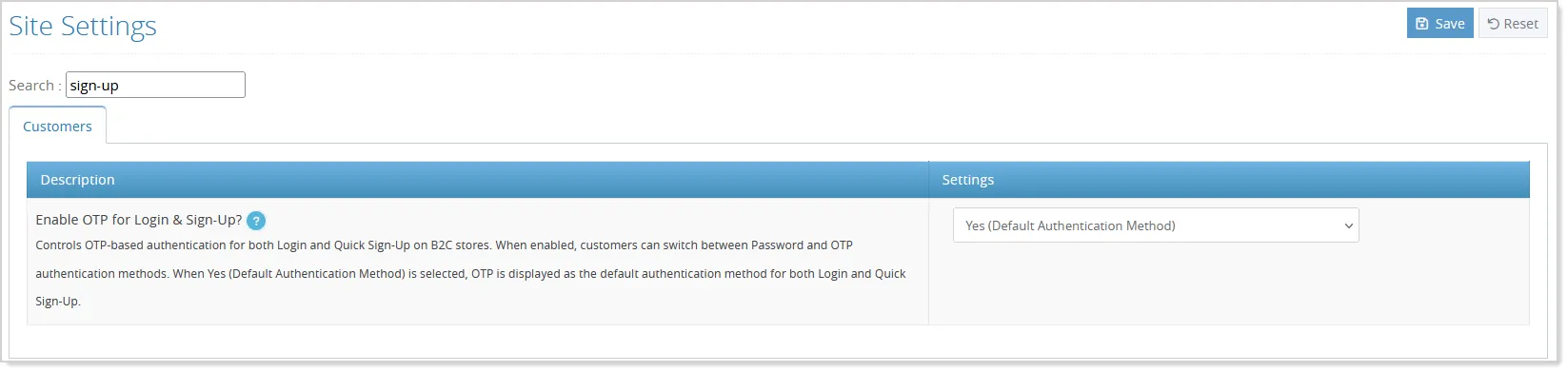
Admins can control OTP availability and the default authentication method using the Enable OTP for Login & Sign-Up setting:
Phone Numbers are also validated for uniqueness within the same store, helping ensure that each customer account is associated with a unique phone number.
Visual Page Builder for CMS Pages
You can now create and customize CMS pages using a visual drag-and-drop Page Builder with the new Advance Editor, making it easier to build responsive page layouts without writing HTML or CSS.
To get started, open a CMS page and move to the Contents Section. Here you will find the new Advance Editor button within the Content Editor:
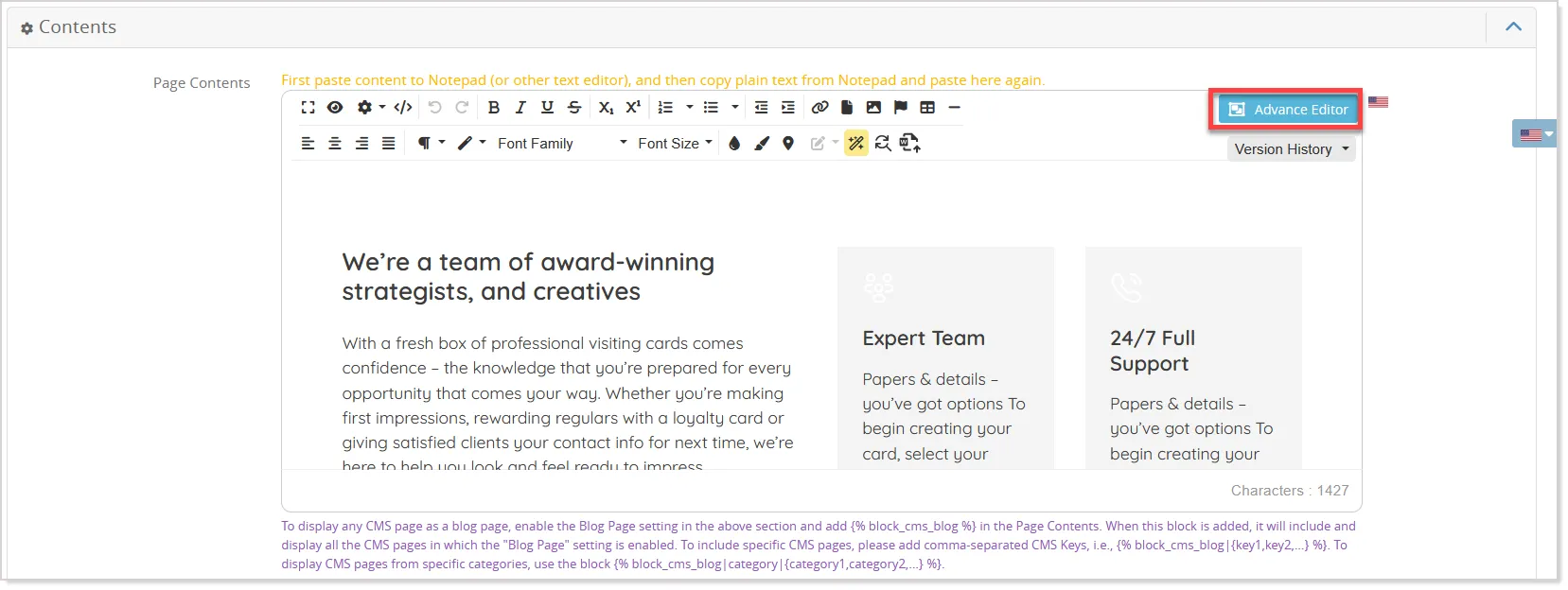
The Page Builder opens in full-screen mode with your existing page content loaded automatically:
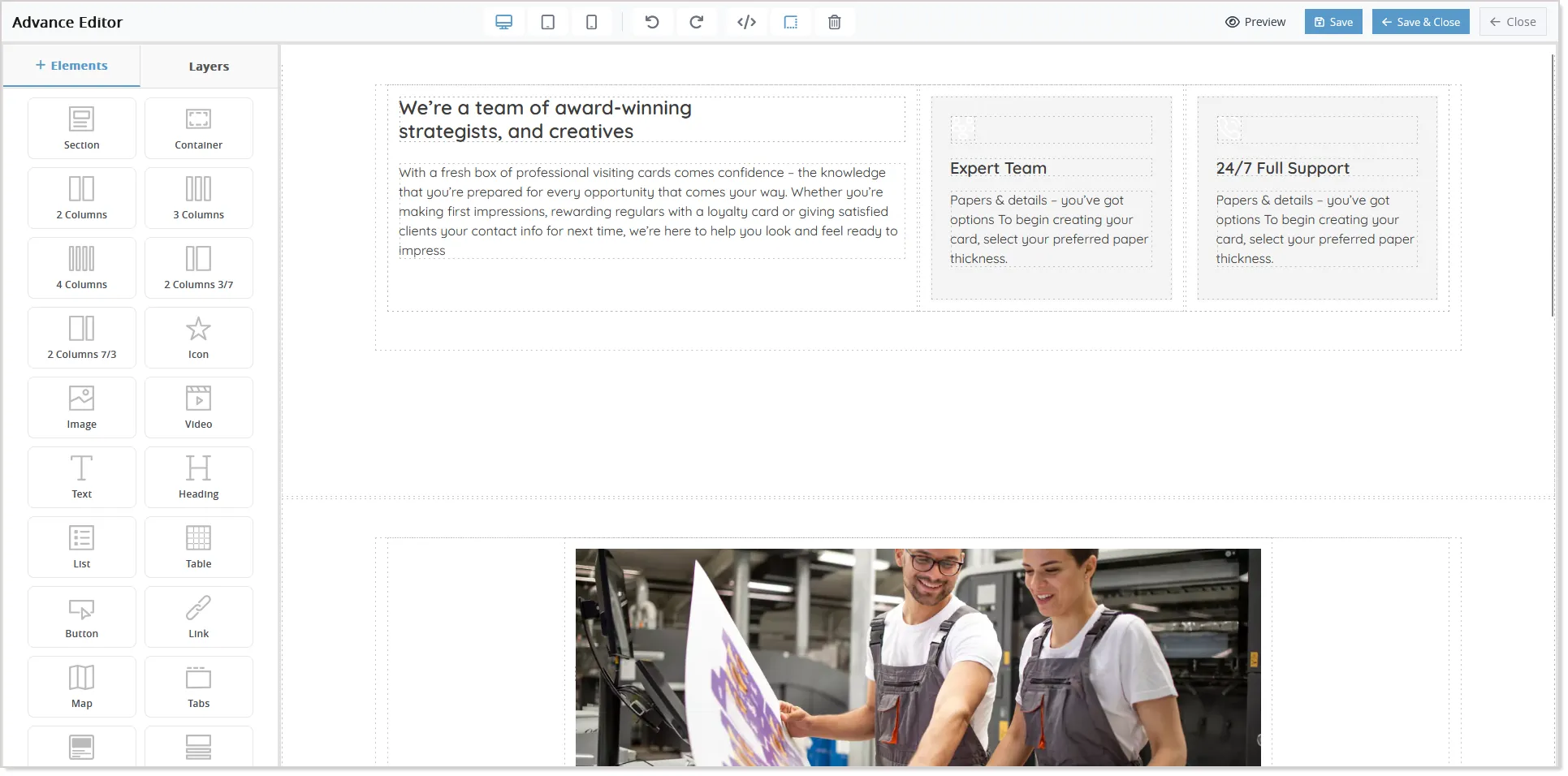
Build your layout by dragging and dropping ready-to-use blocks such as Sections, Containers, Columns, Headings, Text, Images, Videos, Buttons, Links, Icons, Maps, Tabs, and Countdown. For images, use the existing Image Explorer to select or upload files and configure properties such as alternative text, width, and height. You can also add Font Awesome icons and videos from YouTube, Vimeo, or direct MP4 URLs.
Customize elements using styling options for spacing, dimensions, typography, colors, borders, backgrounds, alignment, and other properties. Built-in tools such as Undo, Redo, Grid View, Code View, Clear Canvas, and Preview make editing easier, while Desktop, Tablet, and Mobile preview modes help you verify the layout across screen sizes.
Once the page is ready, select Save to save your changes or Save & Close to save and return to the editor. Existing page content and supported HTML elements can continue to be used with the Page Builder.
Quick Design Enhancements
Quick Design is enhanced to make common customization tasks more visual and easier to perform directly from the storefront. Users can now select bound images directly from the Quick Design panel using inline thumbnails, choose promotional product colors through visual color swatches, and remove an existing image without switching to the Advance Editor. These improvements reduce unnecessary pop-ups and extra steps when making quick product customizations.
For bound images configured through Template Properties or Block Specific Personalization, admins can enable Inline Bound Images to display the available images directly in the Quick Design panel:
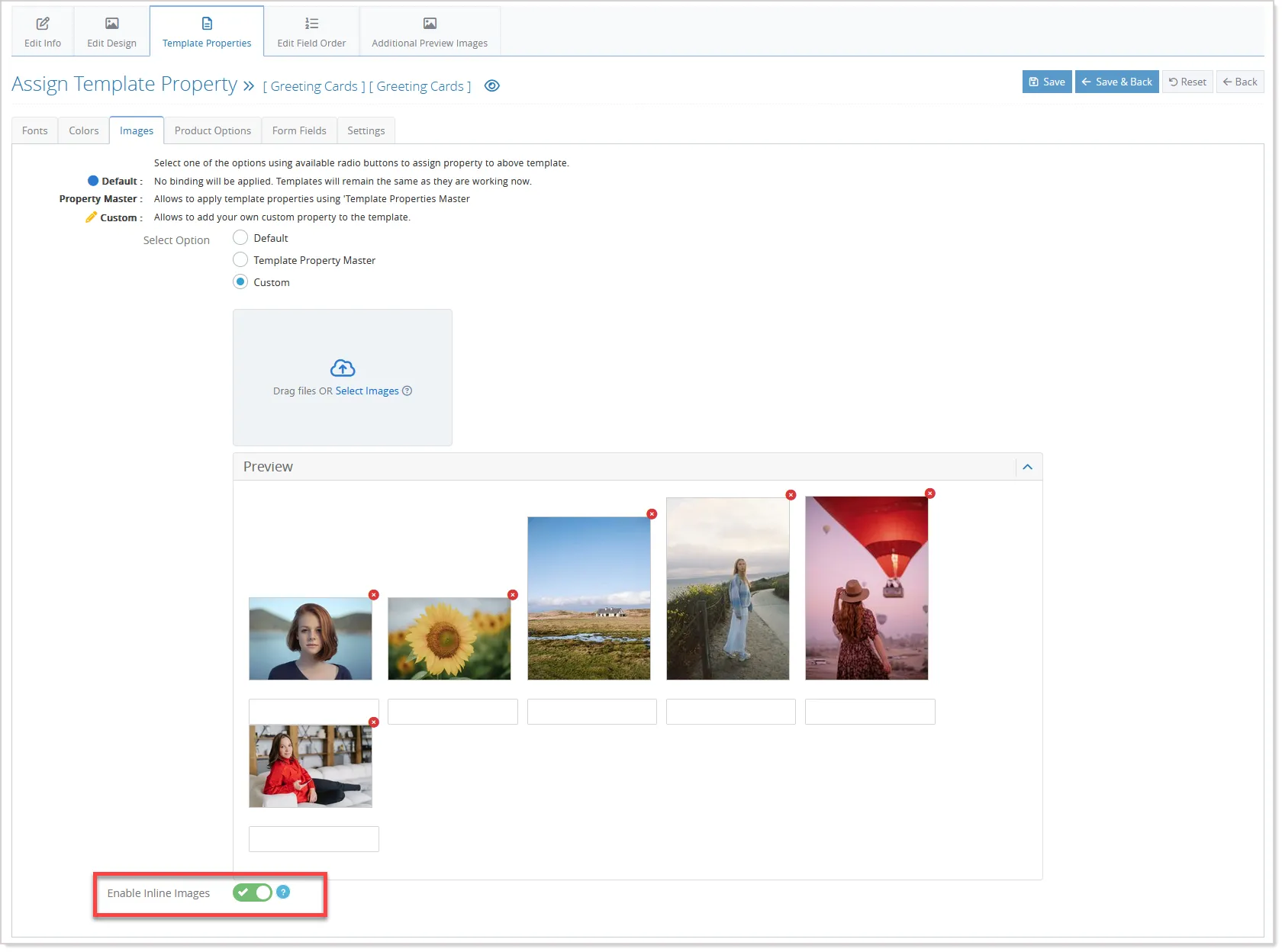
- Users can select an image with a single click, with the currently applied image clearly indicated as selected.
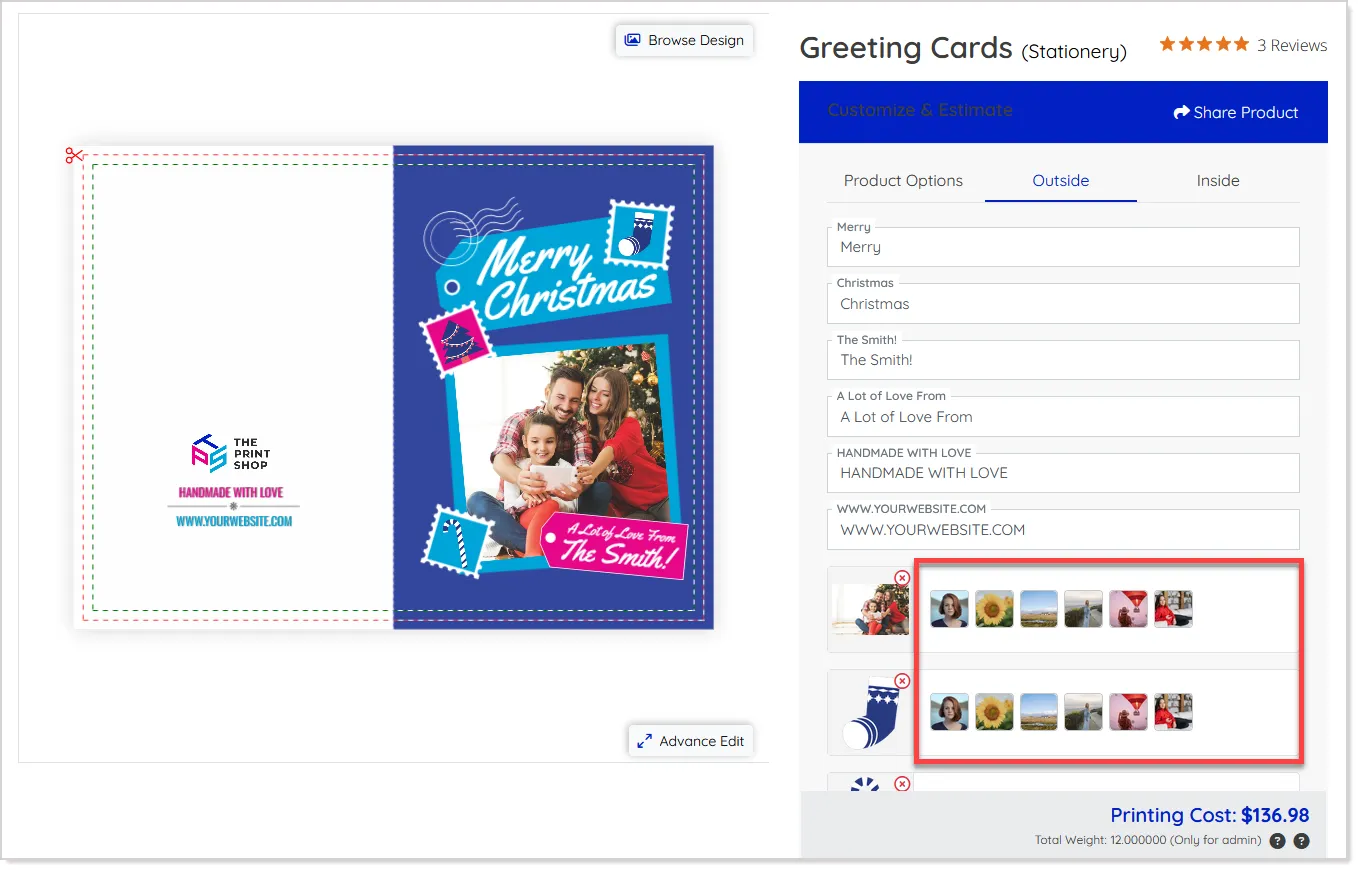
- Up to the configured number of images are displayed inline, with the option to use the existing Browse flow when applicable. The setting can be enabled independently at the template and block personalization levels.
For promotional products with colors linked to an additional option, available colors are now presented as visual color swatches instead of dropdown or radio options.
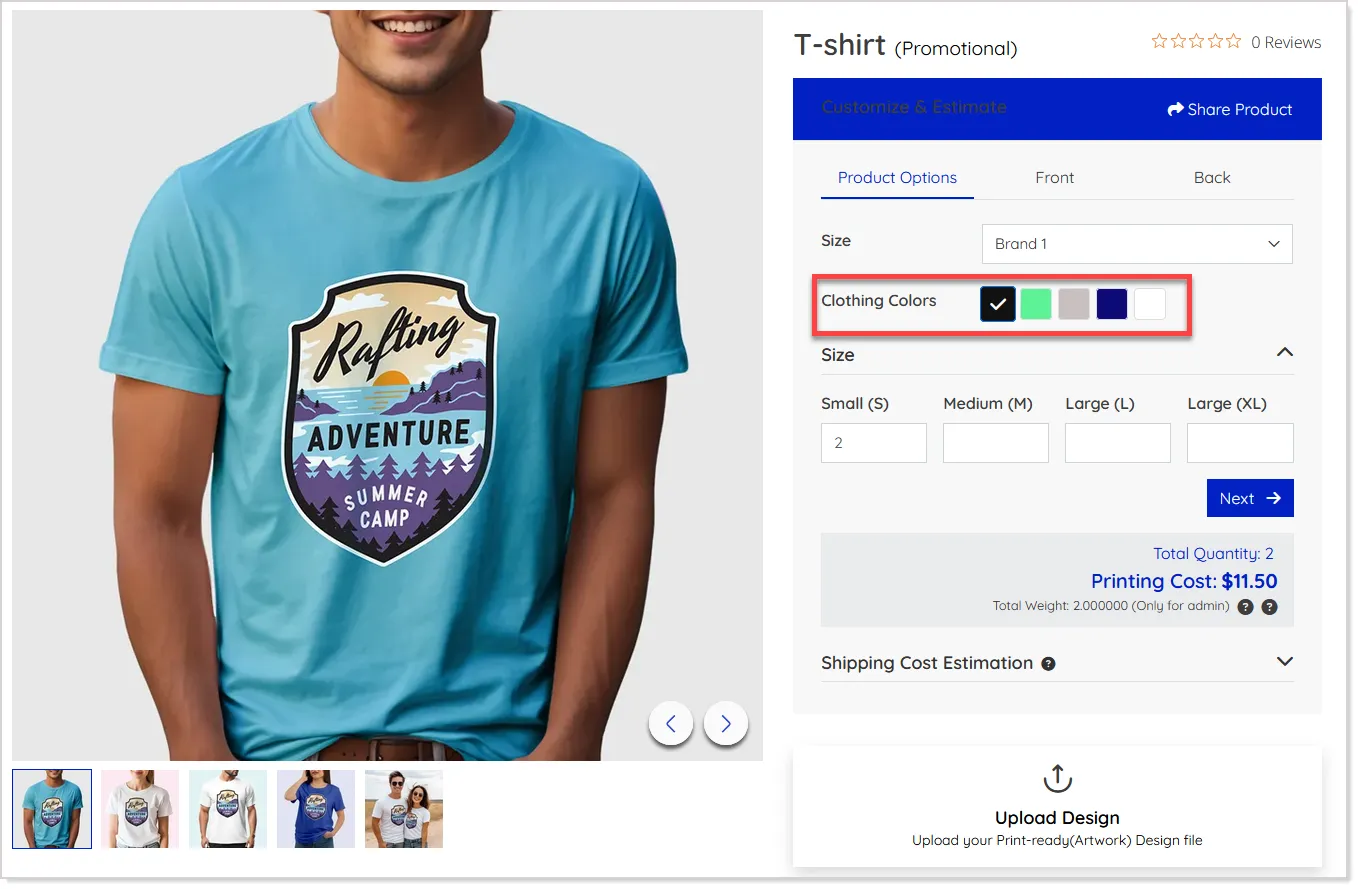
- Users can identify and select a color directly from the Quick Design panel, with the selected color reflected on the canvas.
- Available swatches are also updated when the product size changes, ensuring only valid color options are presented.
- When both promotional colors and attribute images are configured, the promotional color swatches take priority.
Quick Design also now provides a Delete Image option alongside the existing image actions.
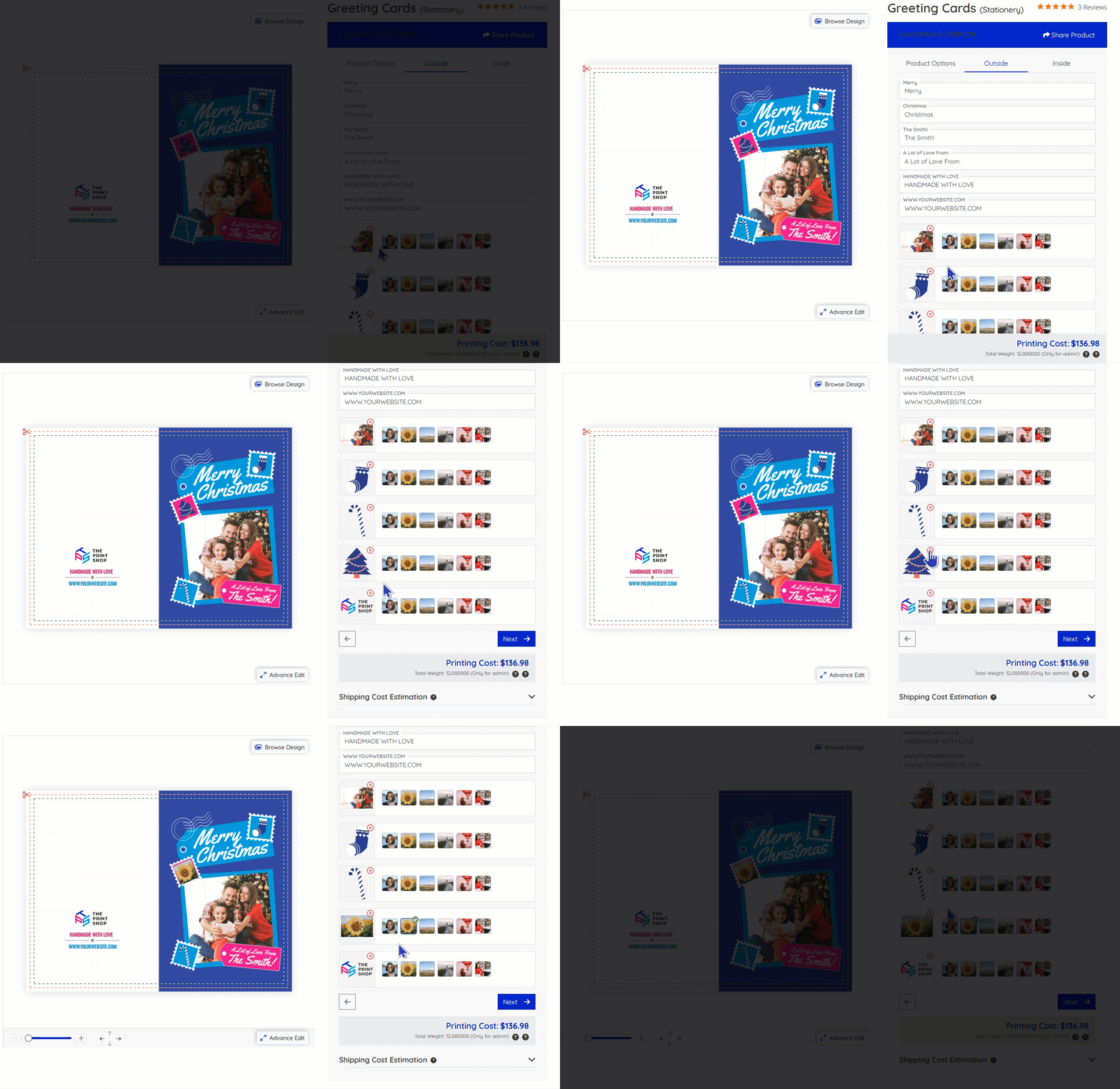
- Users can remove an applied image while keeping the print position and image placeholder intact, allowing them to leave the position blank or select another image later without opening the Advanced Editor.
Minor Enhancements
Predefined Quantity Dropdown with Custom Quantity
The Price Calculator now supports predefined quantity dropdowns with a “Custom” option, making it easier for customers to select commonly used quantities or enter a custom quantity when needed. This enhancement is available for Range Based with Multiplication, Range Based without Multiplication, and Custom Size pricing methods.
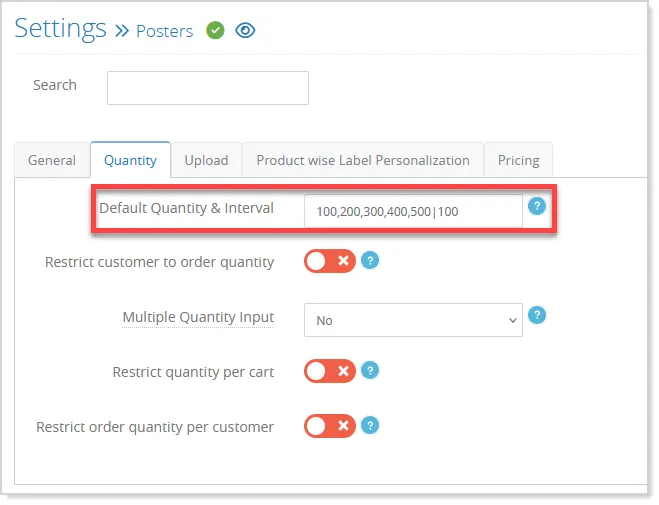
Admins can configure multiple predefined quantities in the Default Quantity & Interval field under the Quantity tab of Product Settings:
When multiple values are configured, they are displayed as selectable options in the Price Calculator, with Custom available for entering a custom quantity:
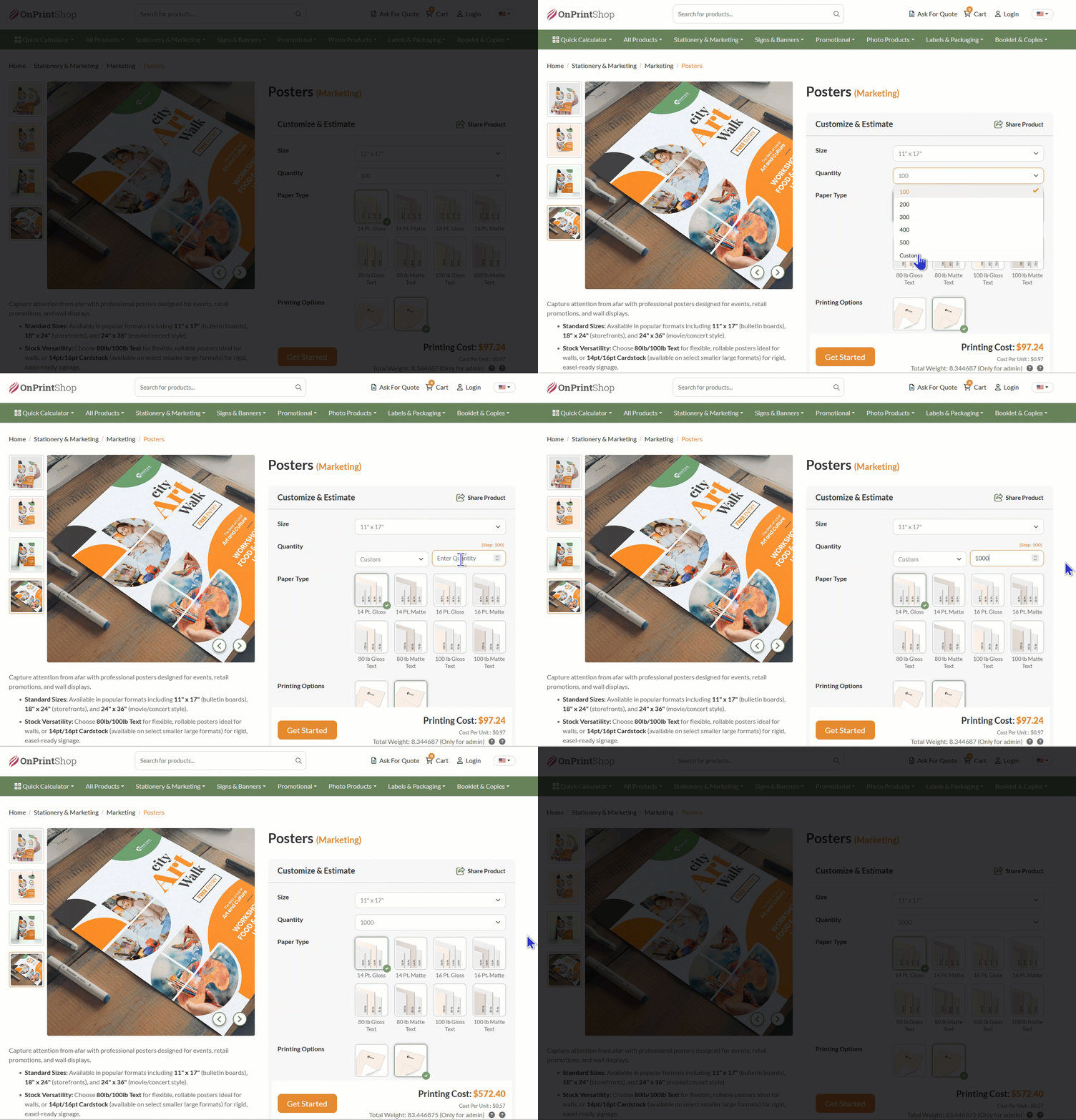
For Range Based pricing methods, the first predefined value is selected by default, while existing single-value quantity behavior remains unchanged.
When Show Price List is enabled, the price table displays a separate row for each predefined quantity and dynamically adds a row when a customer enters a custom quantity through Other. Quantity and interval validations continue to apply to custom entries where configured.
Edit Uploaded Images from the User Images Listing
The User Images listing in the front store is enhanced with an image editing option, making it easier for customers to modify images they have already uploaded.
An Edit option is now available on each supported image card in the User Images listing:
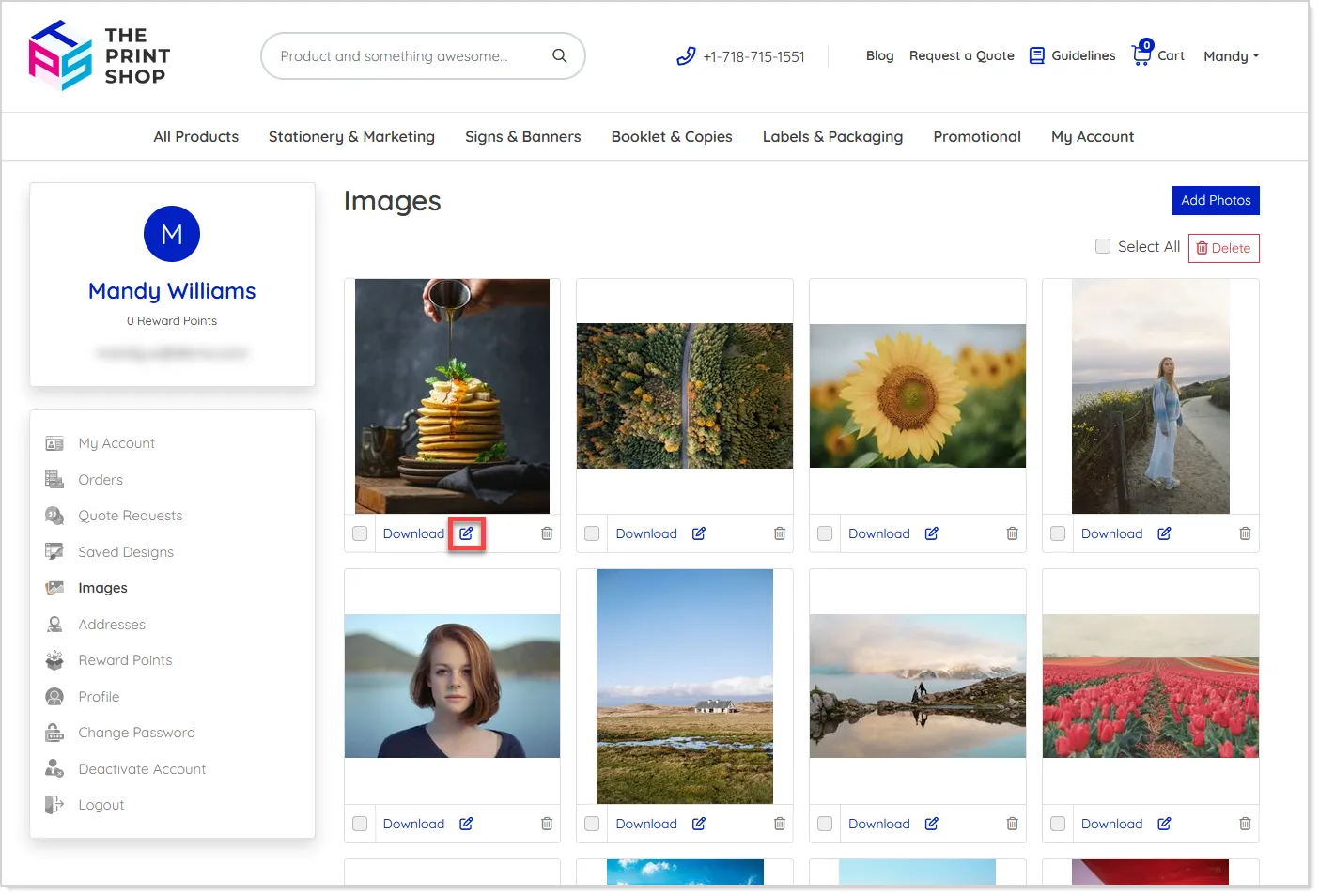
Selecting it opens the image in an editor with crop, rotate, flip, and zoom tools, allowing users to make common adjustments directly within the storefront:
When the edited image is saved, OnPrintShop creates it as a new image, while the original remains unchanged. The new version is then added to the user's image listing alongside the original:
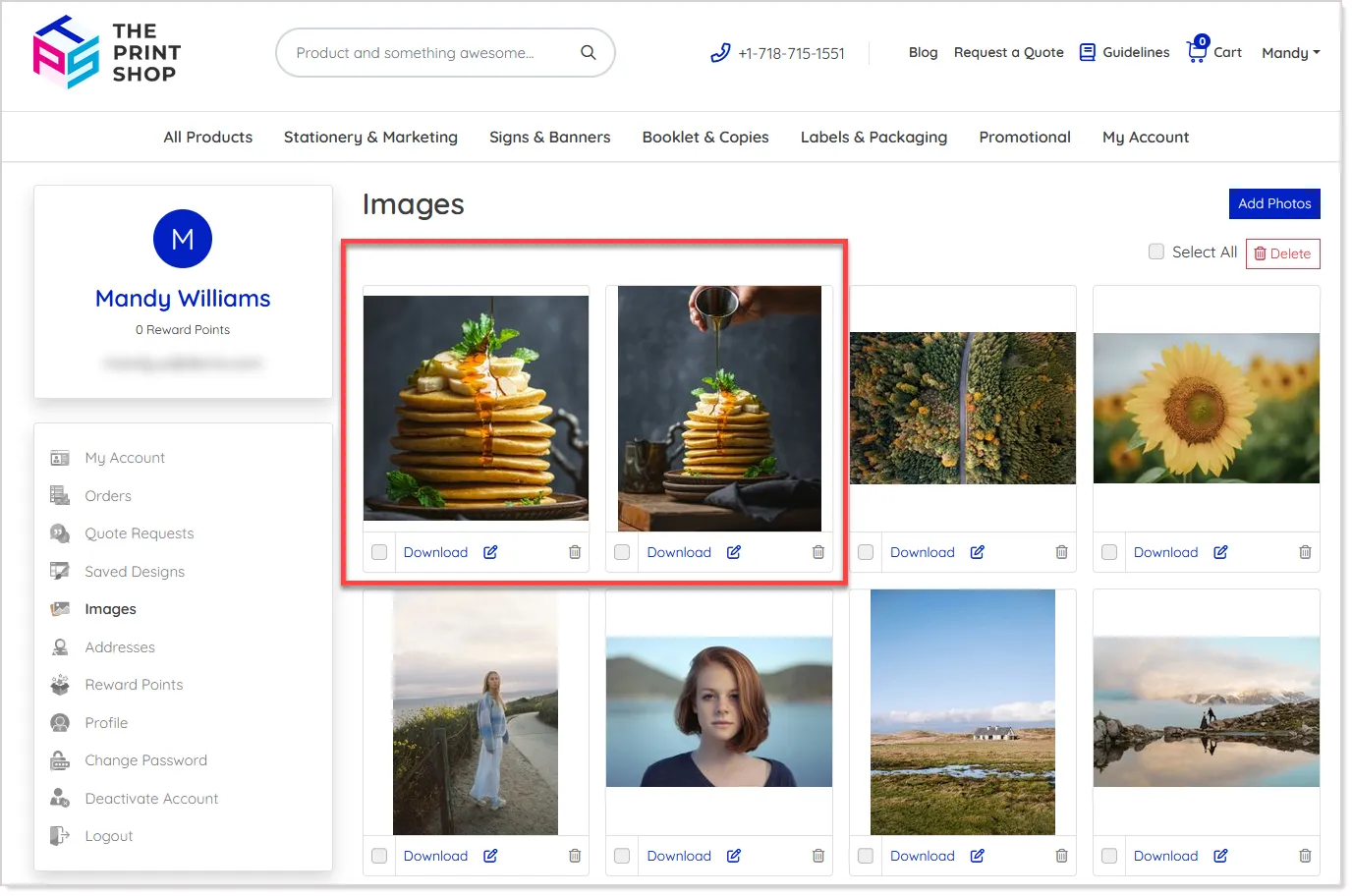
The editing option is not available for SVG, PDF, and EPS files.
Show Production Due Date at Order and Order Product Levels
Customers can now view Production Due Date information directly from the My Orders section, providing greater visibility into when their orders and individual products are expected to complete production. Previously, this information was not available at the order history level, which could make it difficult for customers to track production timelines without contacting the store.
When the Display Production Due Date site setting is enabled, the production due date is displayed at both the Order and Order Product levels. The Order level shows the production due date for the overall order, while each order product displays its respective production due date, helping customers understand timelines even when products within the same order have different production schedules.
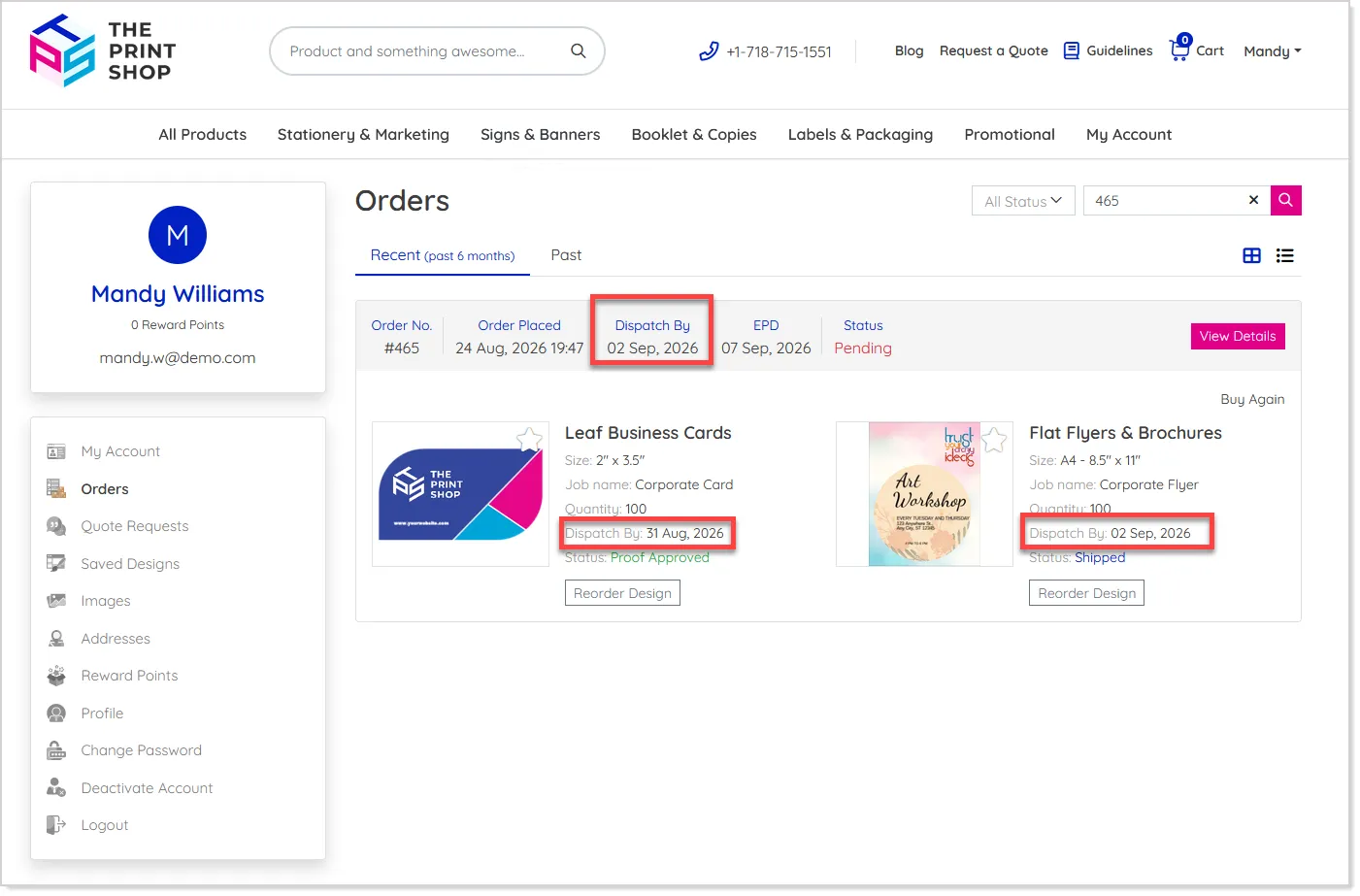
Dates follow the storefront's standard date format and localization settings and are displayed only when a production due date is available. Existing production due date calculations remain unchanged.
Product Gallery Thumbnail Hover Enhancement
Browsing product galleries is now faster and more intuitive with thumbnail hover support on the Product Info page. When gallery thumbnails are displayed in horizontal or vertical mode, hovering over a thumbnail immediately activates its corresponding image or video in the main gallery, eliminating the need to click each thumbnail for a preview.
The activated item remains selected even after the cursor moves away, while hovering over another thumbnail switches the main gallery to the newly selected item. Existing thumbnail click behavior continues to work as before, and the enhancement also works with galleries refreshed after selecting a product option or size, as well as Kit Product and Template/Quick Design thumbnails.
On mobile and tablet devices, users continue to use the existing tap behavior, while popup/lightbox gallery layouts remain unchanged.
Quick Calculator – Ready to Buy Product Direct Checkout
The CMS Quick Calculator now allows customers to purchase ready-to-buy products directly without being redirected to the Product Information page. The existing Get Started button is replaced with Continue Checkout, while Buy Now is also available when enabled for the product:
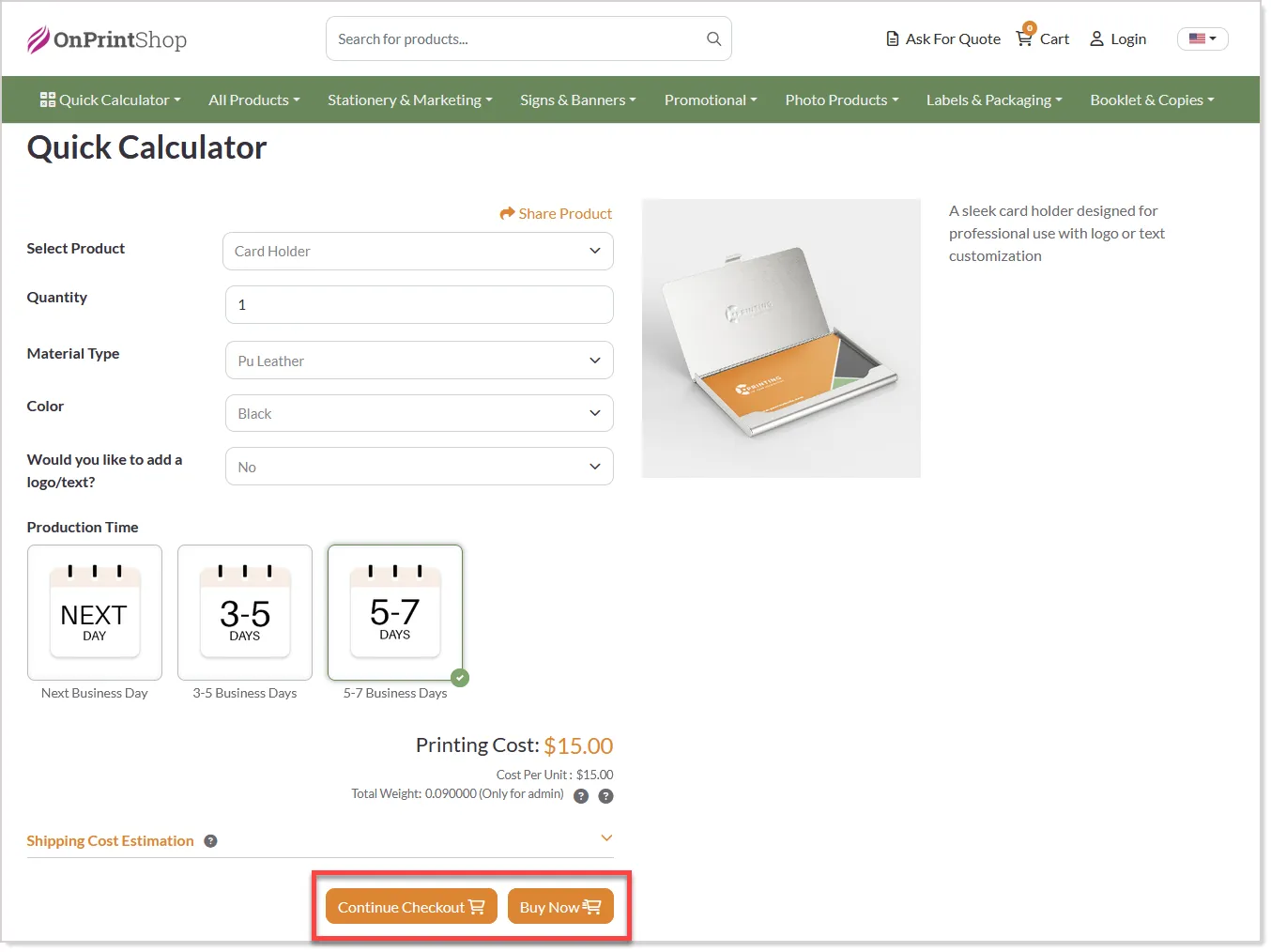
Customers can proceed with their selected size, quantity, additional options, pricing, configurations, and product preview directly into the existing cart and checkout flow. Login requirements, product image selection, print-ready file availability, and post-add-to-cart redirection continue to follow the existing product and store settings.
This enhancement applies only to predefined products; products requiring design or customization continue to follow their existing Quick Calculator flow.
Proof PDF Download with Watermark
The Proof PDF Download Enhancement improves artwork protection during the storefront proofing process by ensuring customers download the correct PDF version based on the configured download settings. Previously, PDFs uploaded from Studio through the Modify Order or Modify Design flow could be downloaded as the original print-ready file without protection.
With this enhancement, when a customer downloads a PDF uploaded from Studio through the Proofing Tool, the system provides a proof PDF with a “PROOF” watermark by default. When print-ready downloads are enabled, the original PDF is downloaded instead, without the watermark. The same logic is applied to the non-visual proof flow, where the download label indicates whether the available file is a Proof or Print Ready file.
This enhancement applies only to PDF files and helps protect original artwork while still allowing customers to review and download their proofs. Existing download behavior under My Account -> Order Details remains unchanged.