Order Section
Create and Manage Customer Templates from the Admin Panel
Customer templates provide a convenient way to reuse designs for customer orders. With v13.1, administrators can now create a new customer design directly from the Order Modify Design page, providing greater flexibility to tailor a design to the specific requirements of the selected order.
On the Order Modify Design page, the newly added Create New Design button is available for products where custom design is enabled.
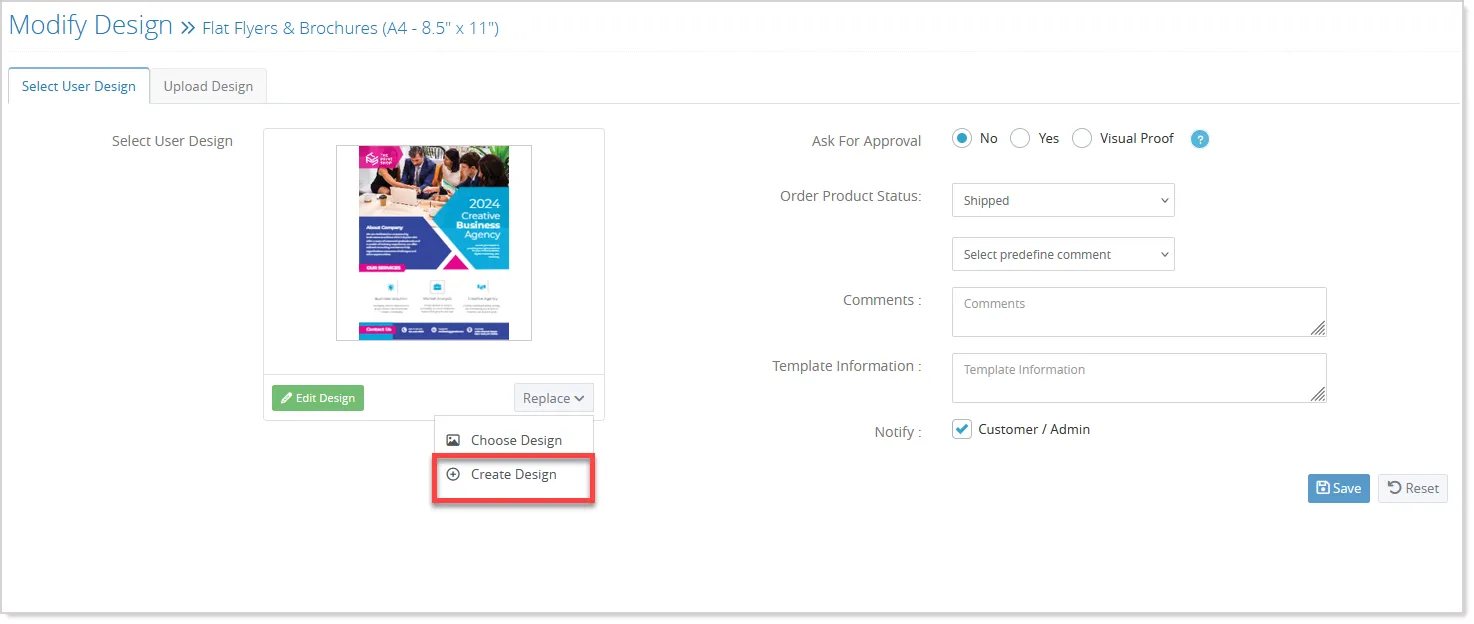
When selected, it opens Designer Studio with the order's product context, including the correct product dimensions and size, applicable options or product masks, and all pages for multi-page products. This allows the administrator to begin designing with the relevant product settings already applied:
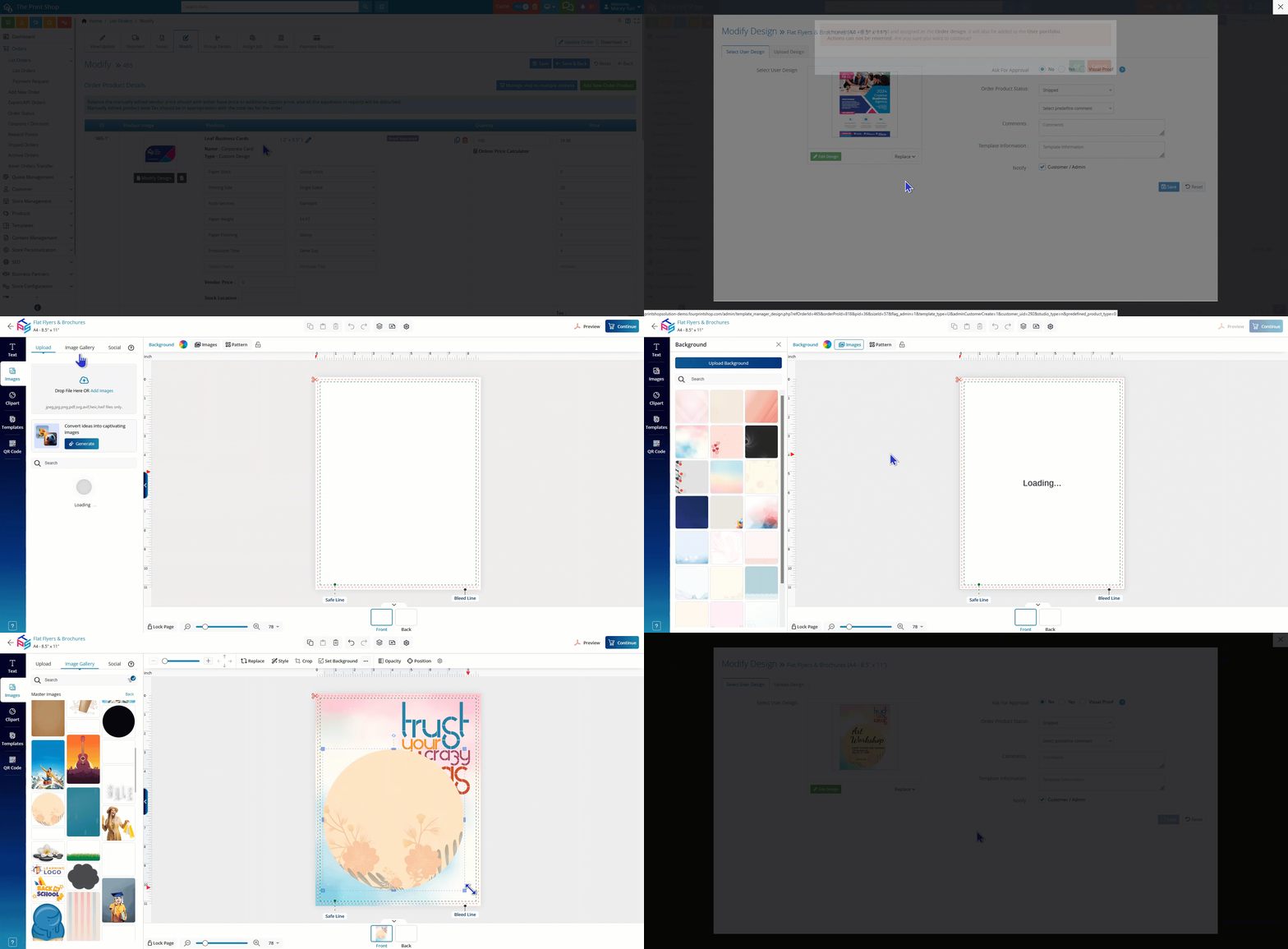
- The administrator can then create the design in Designer Studio and upload the required images using the existing template creation workflow.
- Once the design is ready, selecting Continue saves it as a customer template, associates it with the respective customer, and automatically assigns it to the selected order.
- The order is then treated as a Custom Design Order, with the newly created design reflected in the order.
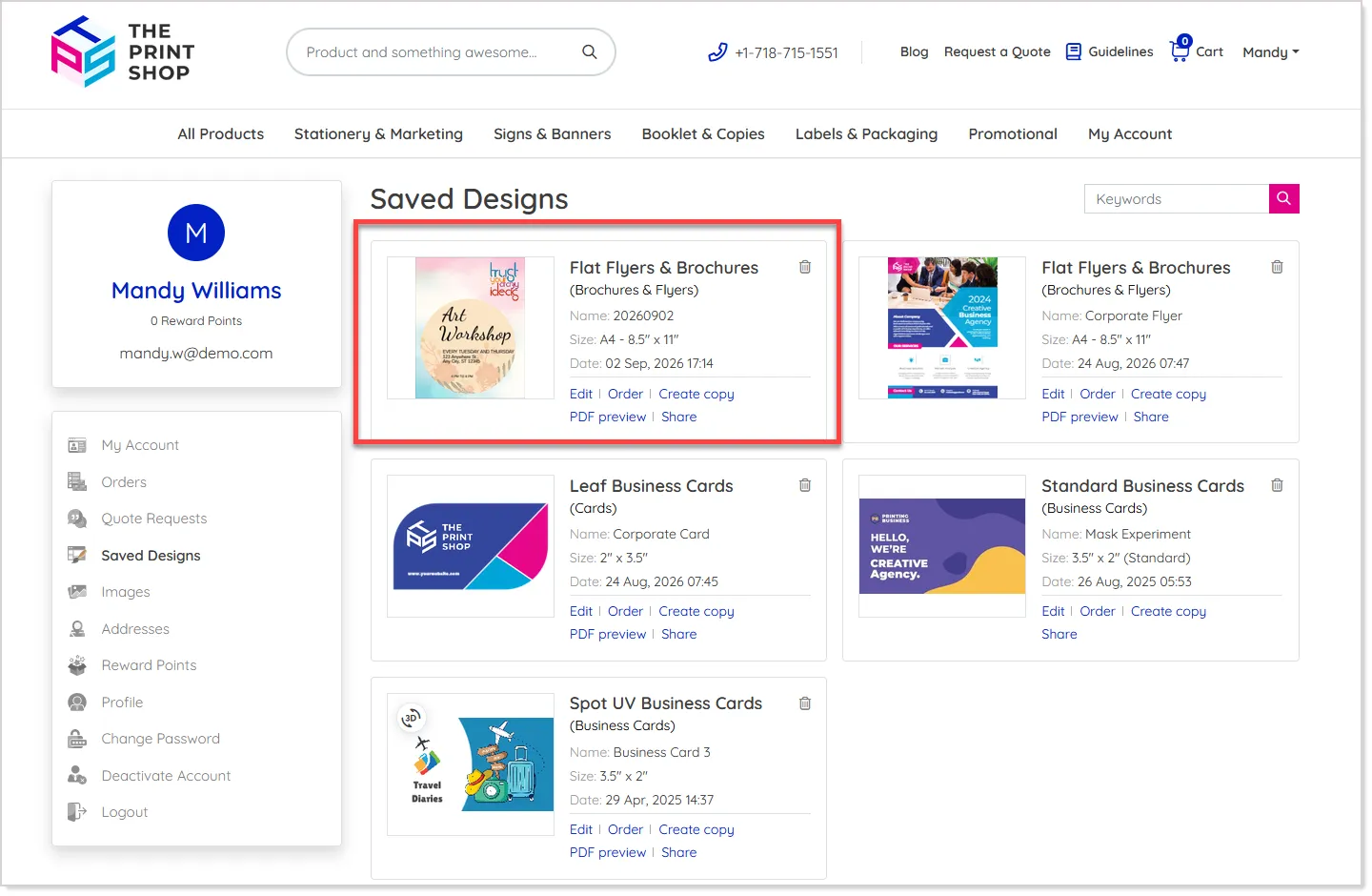
The template you created is also available in the customer's Portfolio, so you can reuse it for other orders as needed. This provides a continuous workflow from creating a customer-specific design to managing and reusing it for future orders:
Administrators can also create a new version of an existing user template from the Choose New Design screen:
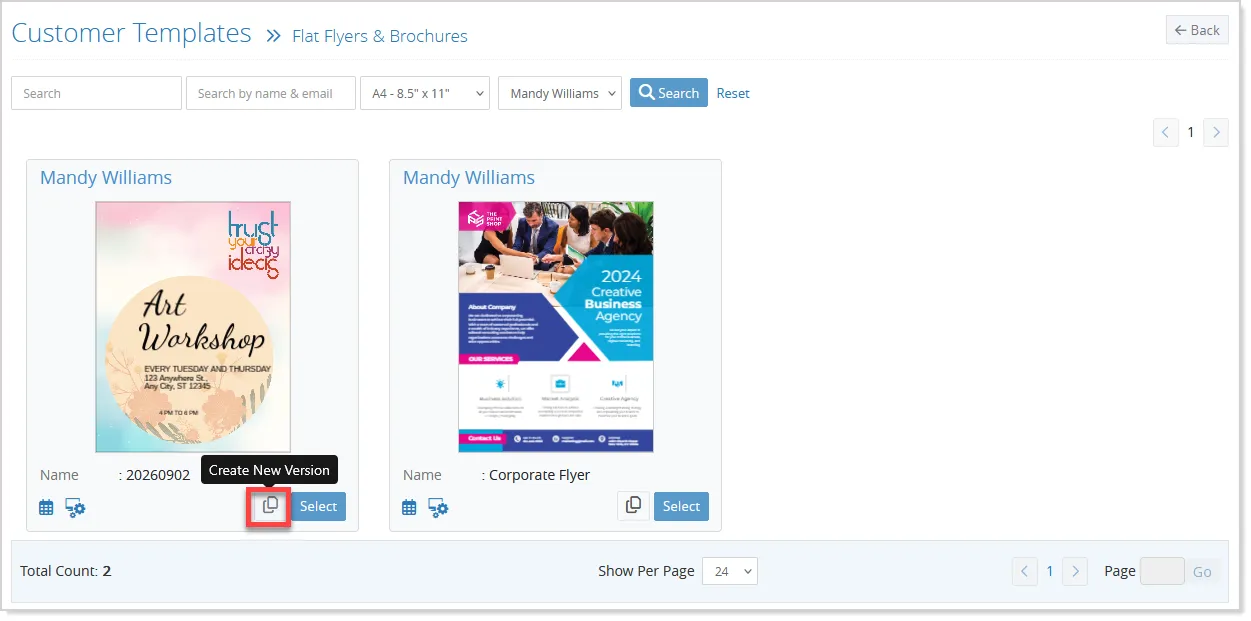
- The Create New Version option opens the selected template in Designer Studio, where the required changes can be made and saved as a new user template while preserving the original template:
These enhancements provide administrators with a flexible way to manage customer designs within the order workflow, whether they need to create a new design for an order or create a new version of an existing template. The resulting customer templates can also be retained in the Customer Portfolio for future reuse, while existing order modification workflows and customer templates continue to work as before.
Identify and Manage Rush Orders
Rush Order Management in v13.1 provides print providers with a configurable way to identify products that require priority production. The functionality uses the existing Turnaround Time master option, allowing specific production time attributes to be marked as Rush while keeping Rush priority independent of the production due date. This makes it possible to distinguish products that require expedited production based on the selected production time and manage their priority throughout the order workflow.
Rush Order Configuration
To configure Rush eligibility, go to the Product Option (Master) configuration and open the relevant Turnaround Time option.
- Here, a new Rush column is available in the Setup Attributes section.
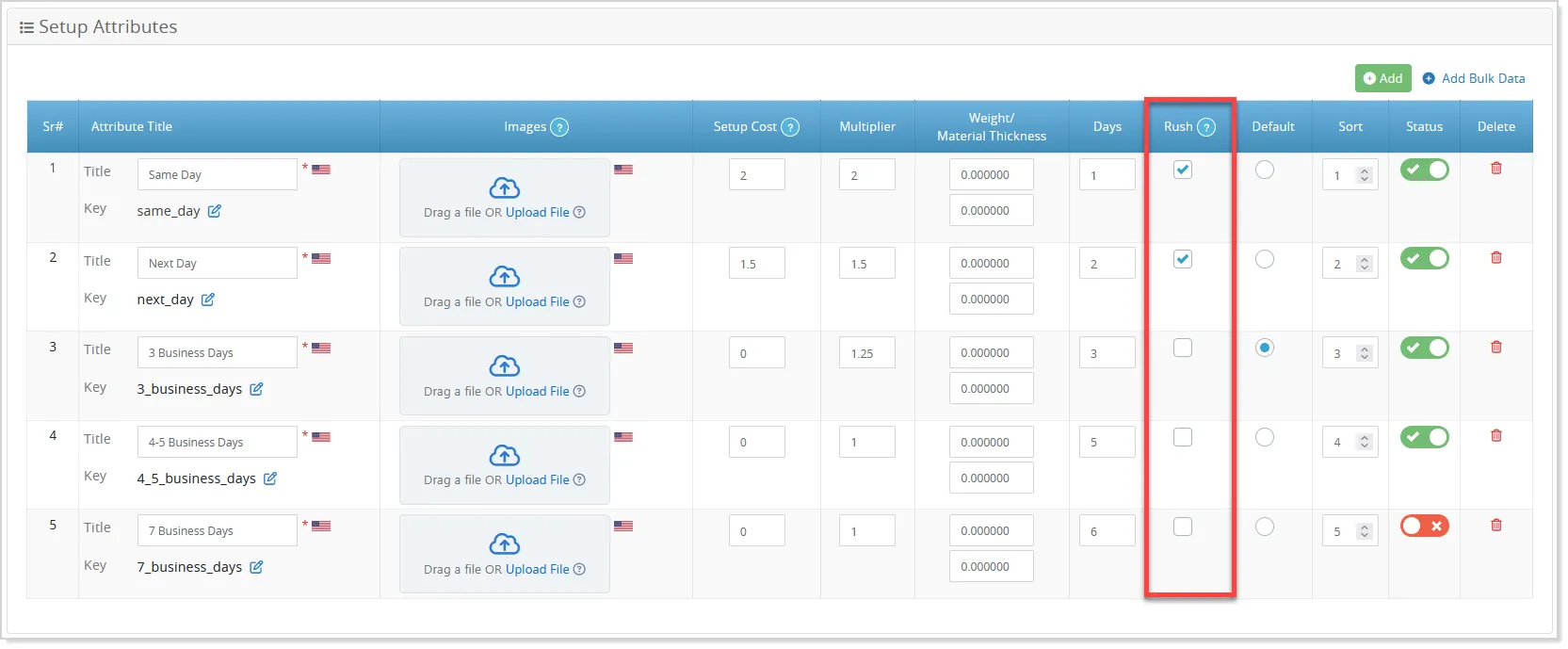
- Each applicable production time attribute can then be marked as Yes or No to indicate whether it represents a Rush production option.
- For example, Same Day and Next Business Day can be configured as Rush options, while longer production times such as 2-3 Business Days or 7 Business Days can remain non-Rush options. This configuration is maintained at the master option level and becomes available wherever the option is assigned.
The Rush configuration can also be customized for individual products when the same Turnaround Time option is used across products with different production requirements.
- To do this, go to the product's Assign Product Options screen, where a Rush checkbox is available beside each assigned attribute:
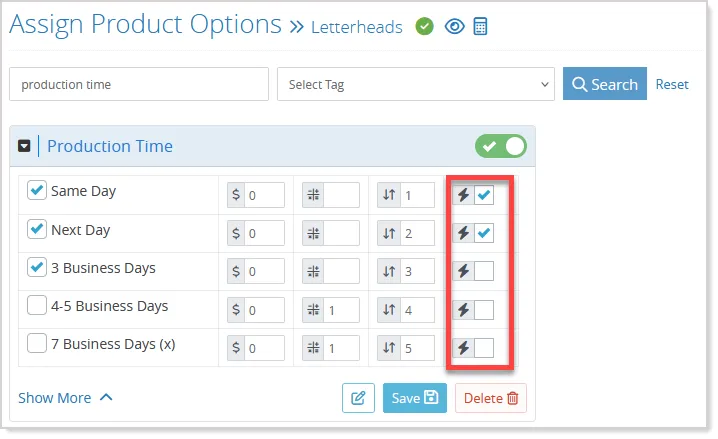
- The value is inherited from the master option by default, but administrators can enable or disable Rush for the specific product without changing the master configuration.
Order Placement at Storefront
When a customer or administrator selects a Production Time attribute while placing a frontend order, the system evaluates its effective Rush setting after considering any product-level override. A product is identified as Rush when the selected attribute has an effective Rush value of Yes. If at least one product in an order is identified as Rush, the entire order is marked as a Rush Order.
Offline Order Placement
For offline orders, administrators can manage Rush status directly while creating or editing the order:
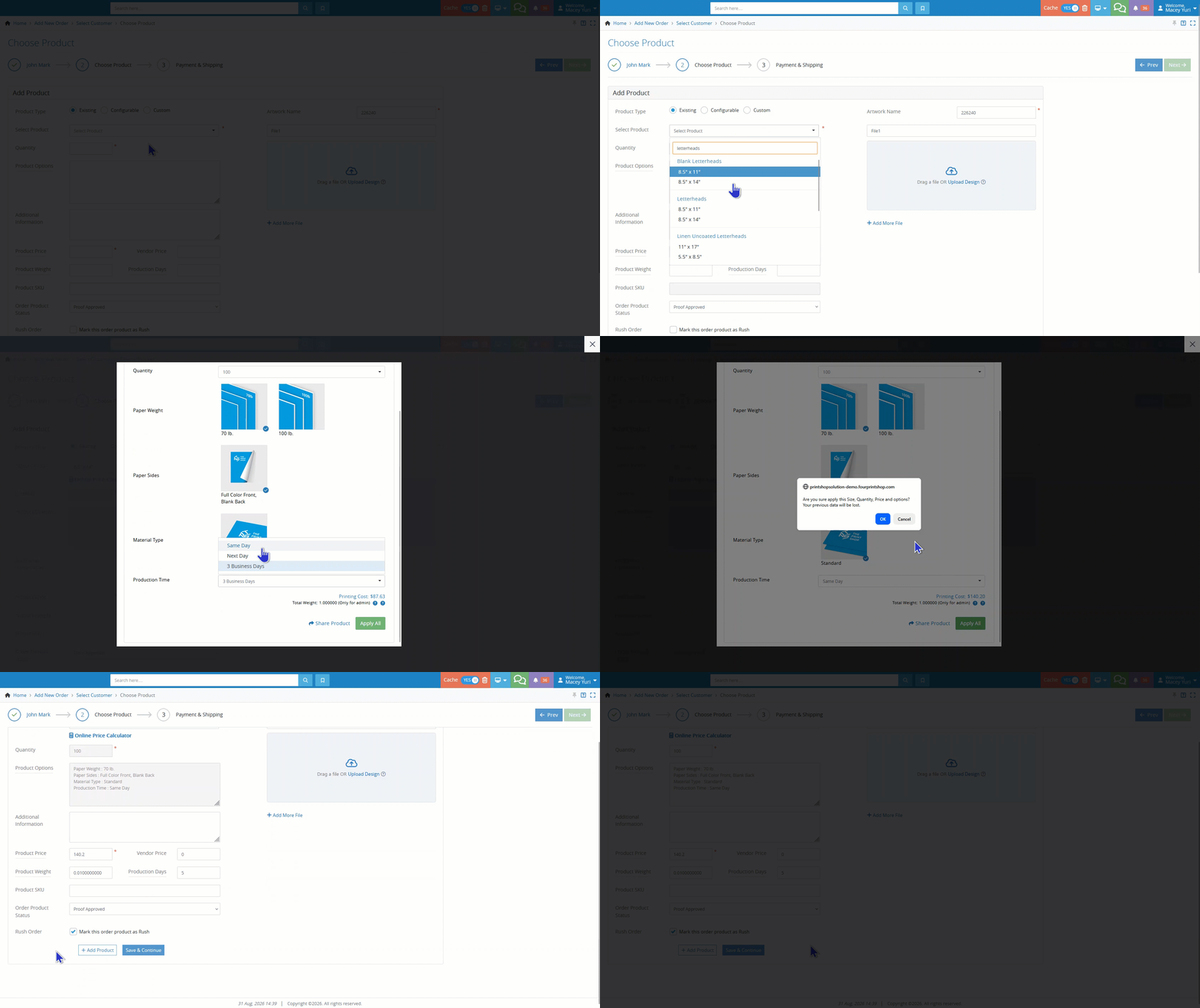
- Each order product includes a Rush Order checkbox.
- When the administrator selects Apply All from the price calculator for an existing product, the system checks the selected attributes and automatically selects the Rush Order checkbox when the applicable production time is configured as Rush.
- Administrators can also manually mark individual products as Rush, and multiple products in the same order can be marked this way. If at least one product is marked as Rush, the entire order becomes a Rush Order, with manual selection taking precedence over automatic Rush identification.
Marking Orders as Rush Manually
Rush status can also be managed after an order has been placed.
From the relevant Order Update or Order Product Update pop-up, administrators can manually mark an order or individual product as Rush:
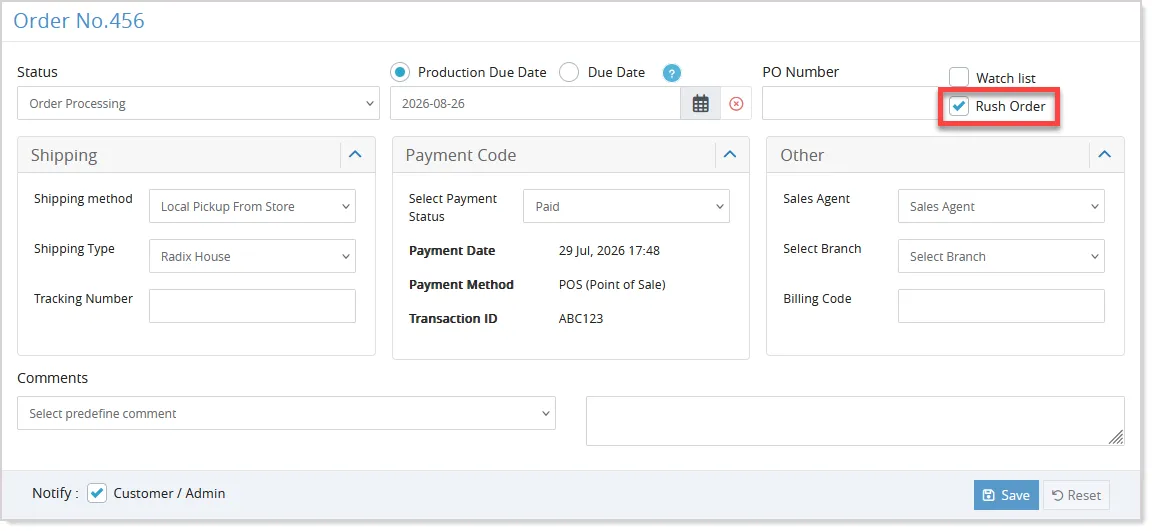
The system also indicates whether the Rush status was Customer Selected or Admin Marked. When an administrator marks an order as Rush, the order becomes a Rush Order when at least one product is updated as a Rush product; an order can also be manually marked as Rush regardless of changes to the production due date or available order product options.
Visual Identification of Rush Orders
Rush Orders are visually identified throughout the order management workflow using a Rush Badge/Icon and row highlighting:

- Administrators can also use the new Rush option within the Traits filter on the order listing to locate Rush Orders:
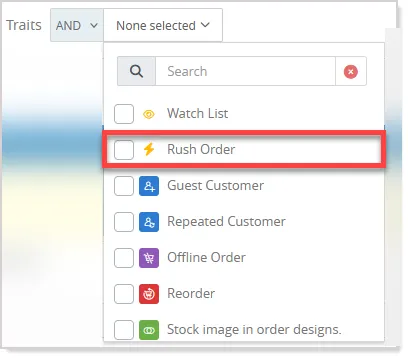
- The Rush badge or icon is also displayed at the product and order levels on the Order Details page, as well as in the Job Board grid and list views, making priority production requirements easier to identify while managing and processing orders.
Rush Information on Additional Screens
Rush information is also made available to downstream systems through the major export and integration channels. A Rush Order or equivalent field is included in the Export API, Hot Folder Export, and GraphQL APIs, and Rush information is also included in the Order Details Report and Order Product Detail Report. This allows connected ERP or MIS systems to identify Rush Orders without requiring additional customization.
With these enhancements, administrators can configure Rush eligibility once at the Turnaround Time master level, tailor it for individual products when required, automatically identify Rush Orders based on selected production times, or manually manage Rush status when customer requirements call for priority production. The existing Turnaround Time calculation and production due date functionality continue to operate independently of Rush Order Management.
Minor Enhancements
Filter Orders by Production Due Date
The Workflow Admin Dashboard and Order Listing are enhanced to make it easier to find and manage orders based on their required production timelines. Previously, users could sort orders by Production Due Date but could not filter the order list for a specific due-date range.
With this enhancement, users can now use the existing From Date – To Date filter with a new Date Type option to search by either Order Date or Production Due Date. Order Date remains the default option and continues to follow the existing filtering behavior, while selecting Production Due Date filters orders based on their production due dates.
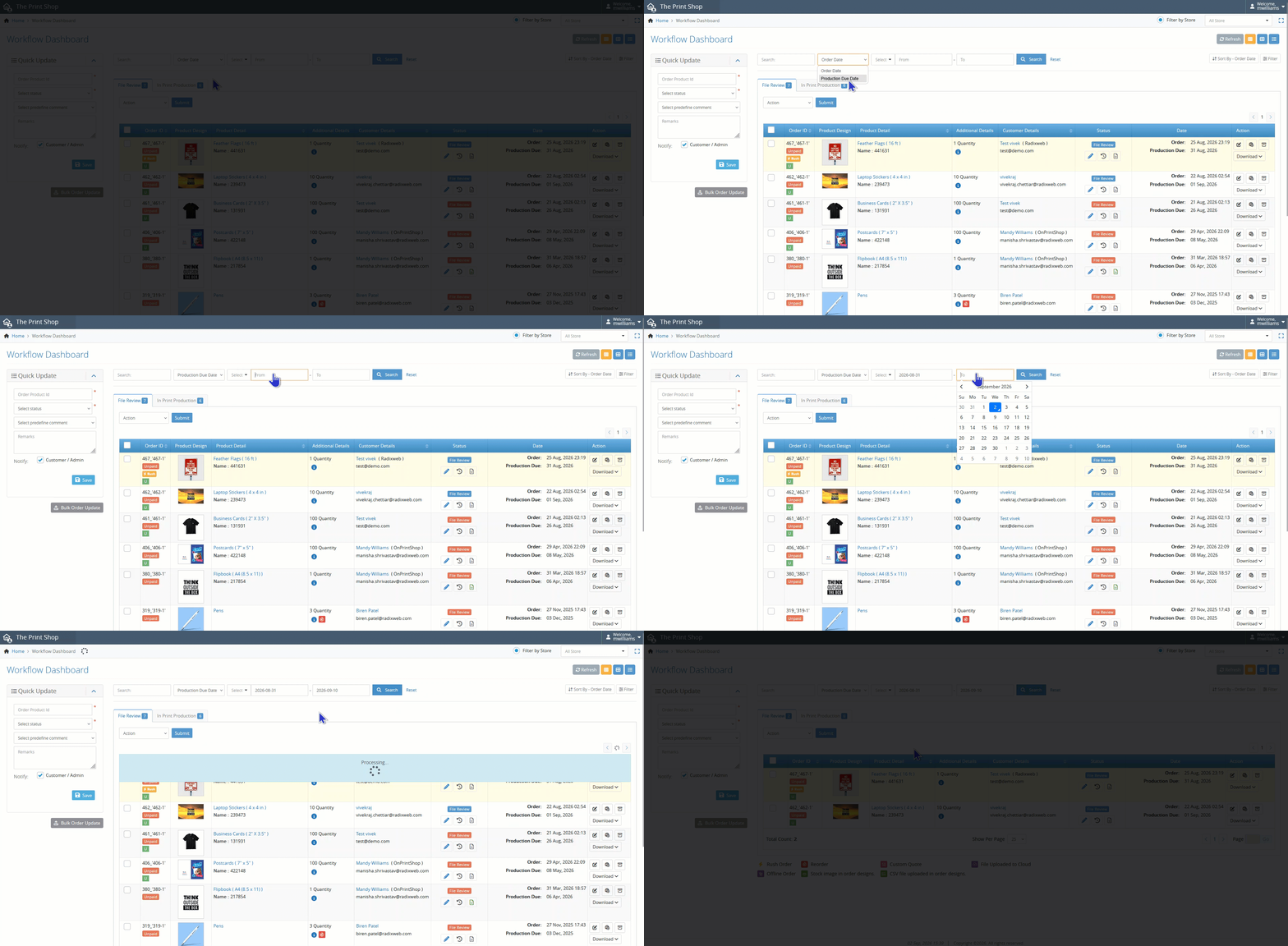
The filtering experience is also improved for easier access to frequently used controls.
- The Sort By option is moved to a dedicated button with ascending and descending options:
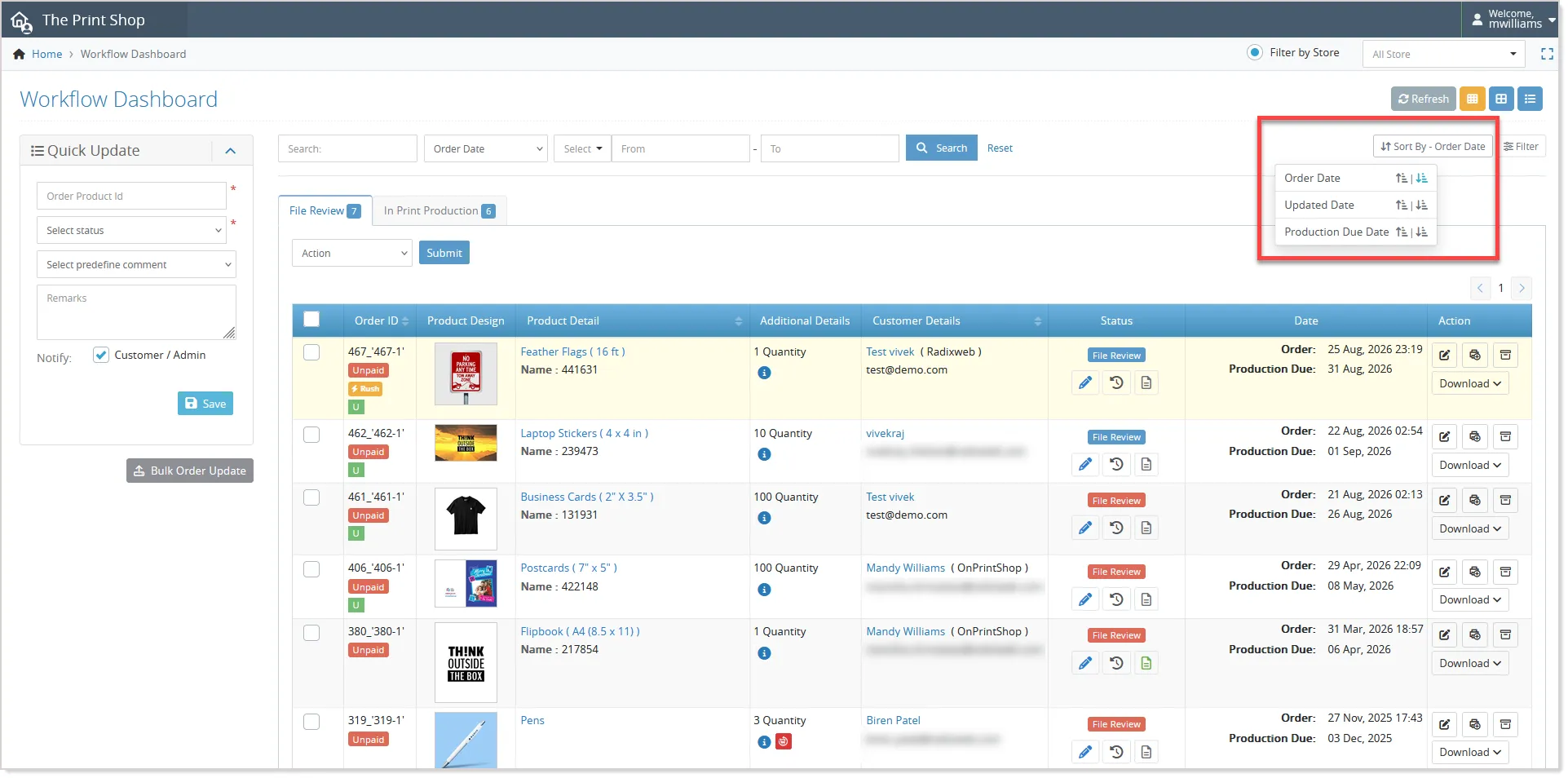
- The additional filters such as Stores, Payment Status, and Products are available through a toggleable Filter panel:
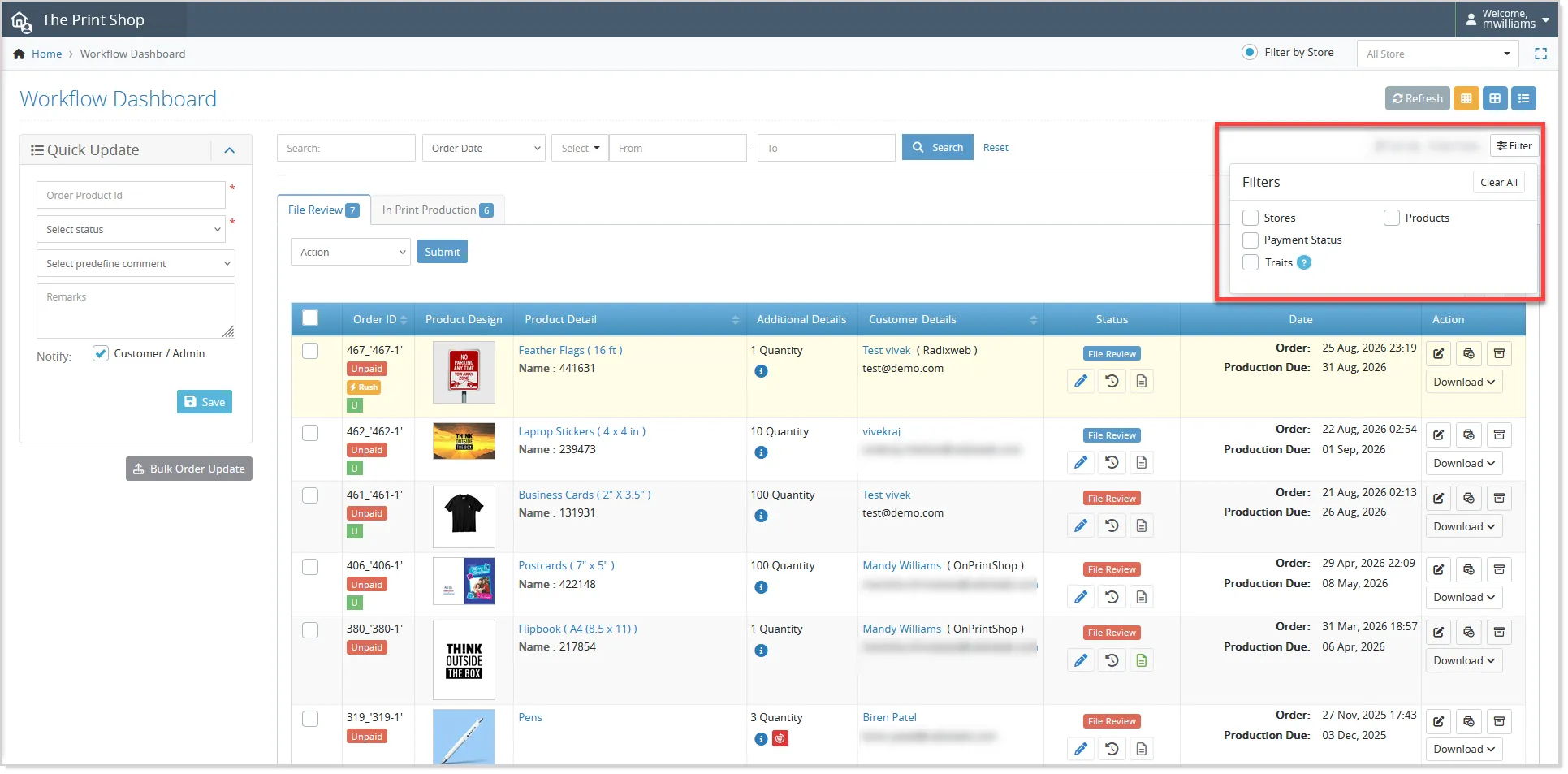
- Users can also retain their filter visibility preferences, consistent with the Order Listing experience.
Predefined Future Date Filters for Production Due Date
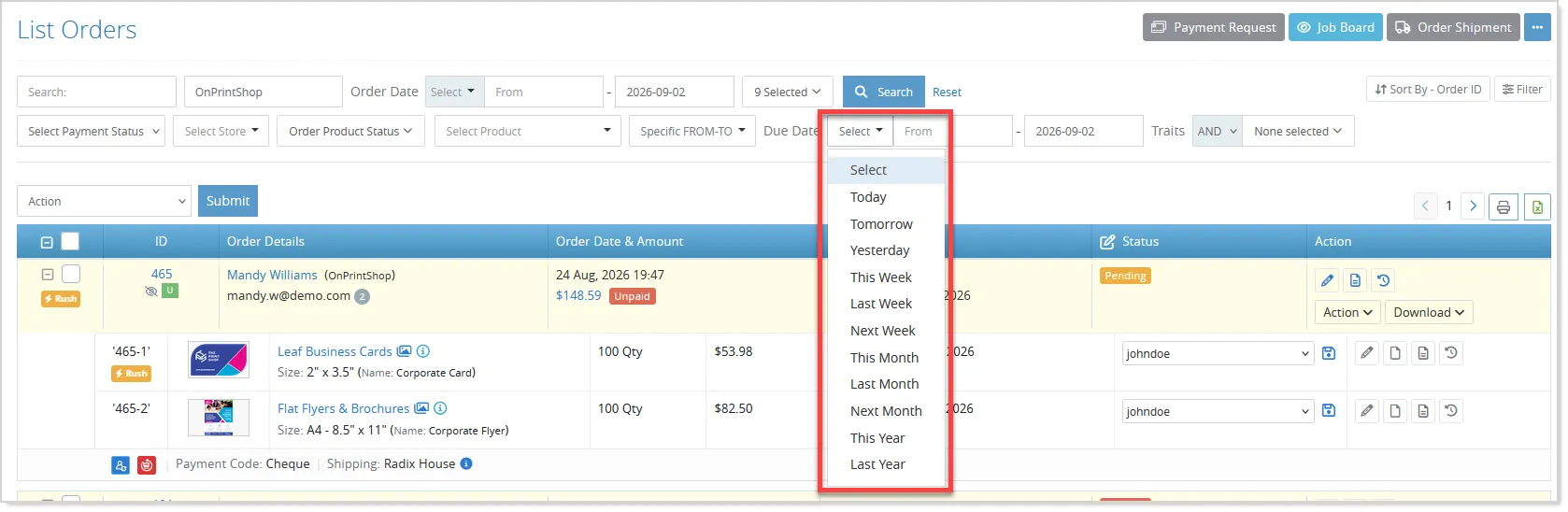
The Production Due Date filter is enhanced with predefined future-date options, making it easier for admins to identify upcoming production tasks without manually entering date ranges. Along with existing options such as Today, Yesterday, This Week, Last Week, This Month, and Last Month, the filter now includes Tomorrow, Next Week, Next Month, and Next Year.
When Production Due Date is selected as the Date Type in Orders -> List Orders, admins can use these options to quickly find orders with upcoming production due dates and plan or prioritize production activities more efficiently:
Order Product-Wise Shipment Status & Tracking Number Update
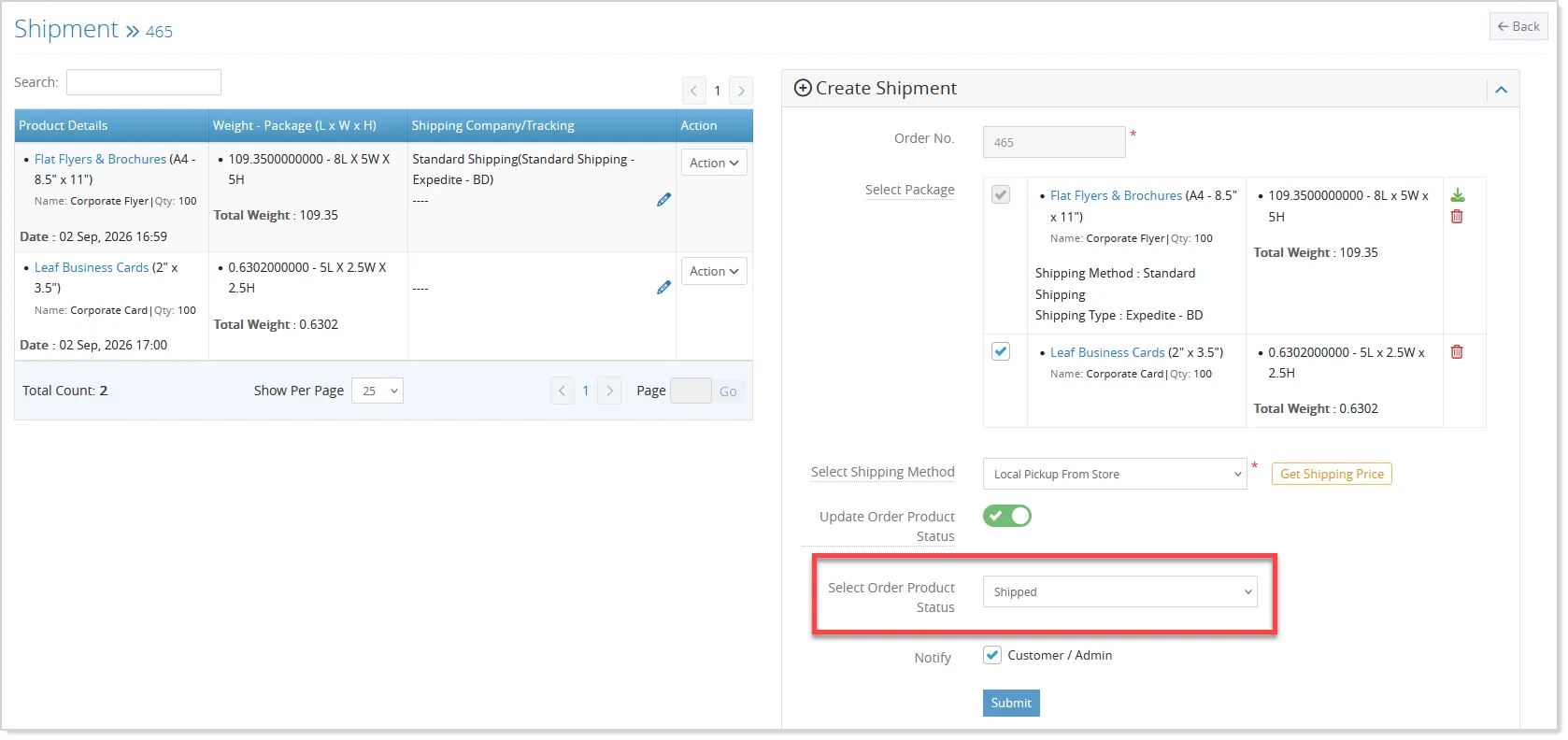
Admins can now manage product-wise shipment status and tracking information directly from the order detail page, reducing the need for separate updates. While creating a product-wise shipment, admins can select an Order Product Status that is applied to all products included in the shipment, with the related order status updated accordingly:
A Tracking Number field is also added to the product update popup, allowing admins to assign or update tracking information without creating a shipment manually.
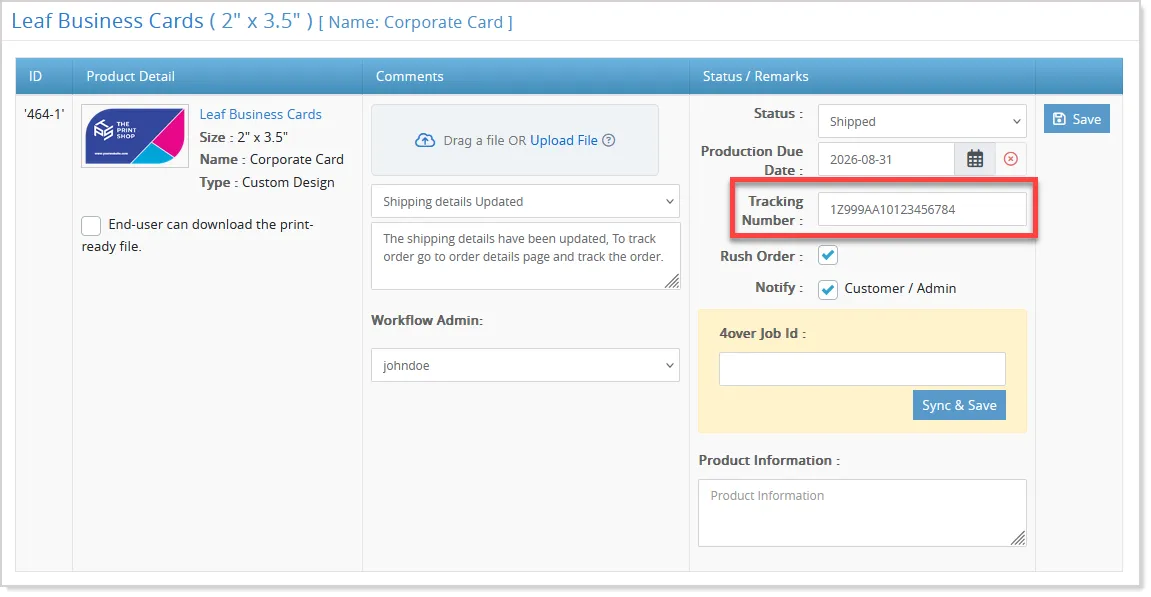
- The system automatically handles shipment creation, grouping, or merging based on the tracking number, following the existing shipment logic.
- Tracking changes are also recorded in order history, while applicable permissions continue to control access to shipping updates.
Additionally, a new Shipped order product status is introduced and linked to the existing Shipped order status, with default content provided for both Shipped and Picked Up statuses.