Designer Studio
Faster Edits, Better Results with AI Image Tools
Designing often requires quick, precise image adjustments—whether modifying elements, refining specific areas, or adjusting colors to match the overall design. Traditionally, this meant using external tools or reworking designs, which could interrupt the workflow.
With AI-powered image editing tools in Designer Studio, you can now make these changes instantly within the canvas, making the design process faster, smoother, and more flexible.
Accessing AI Image Editing
To begin, open Designer Studio and add an image to your canvas. Select the image, then click the AI Enhance option in the image settings panel.
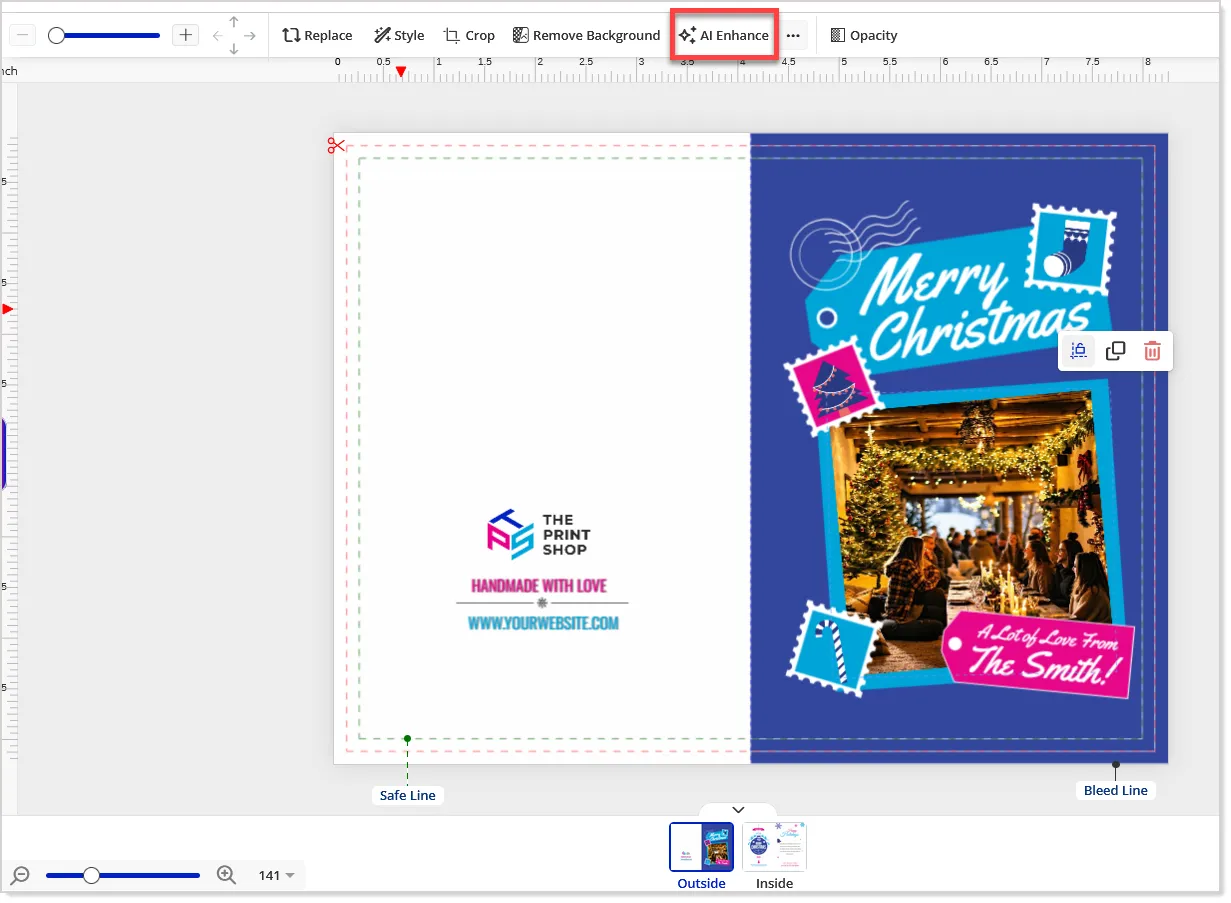
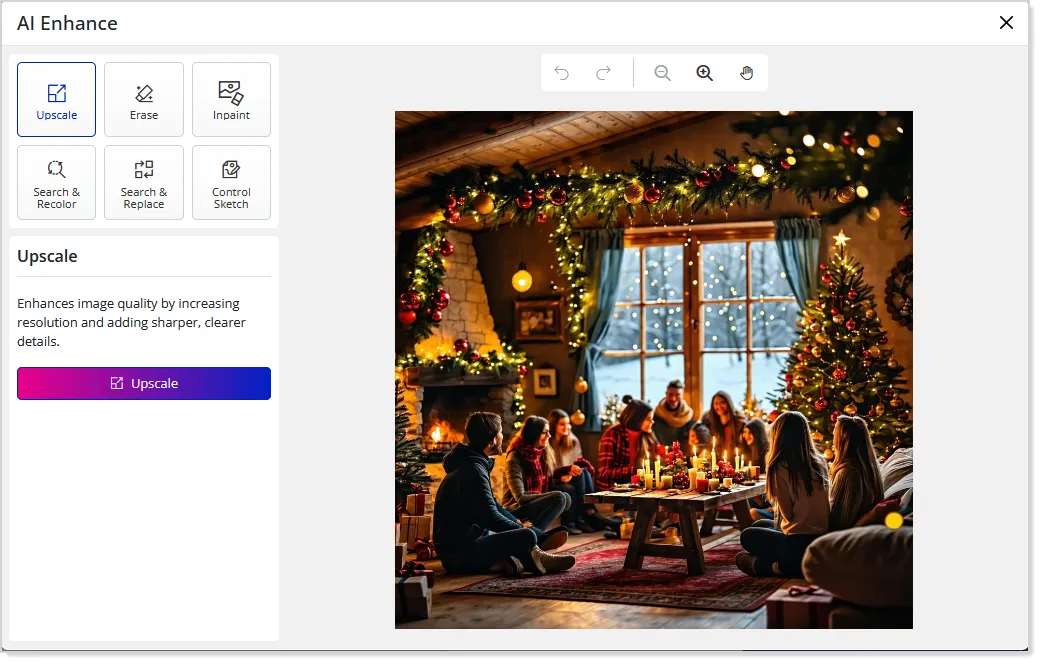
This will open the AI editing panel, where multiple tools are available in one place:
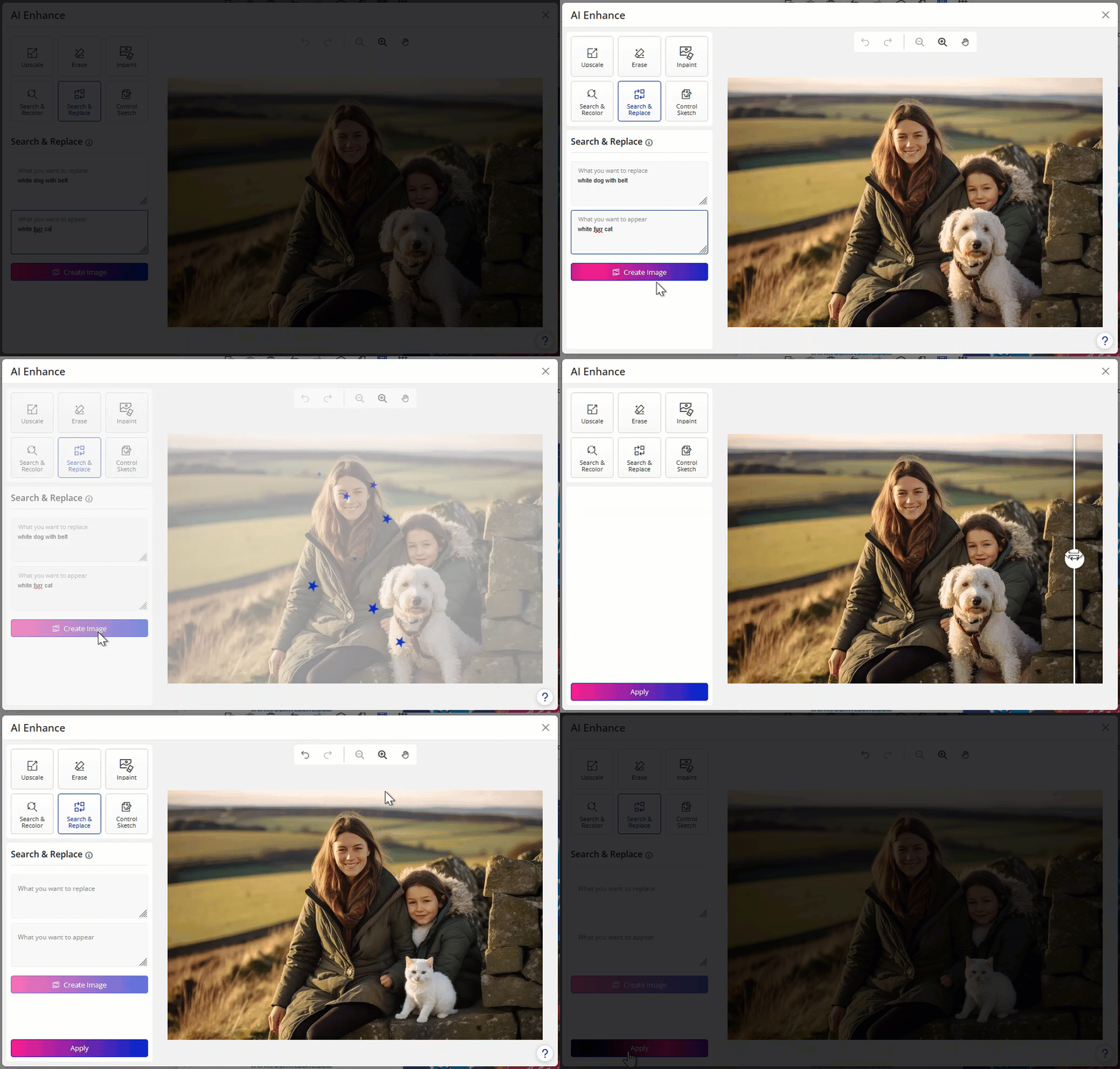
Search and Replace
This feature allows you to modify elements in an image using simple text instructions. You can describe what you want to change and what it should be replaced with, and the system updates the image while preserving the rest of the design.
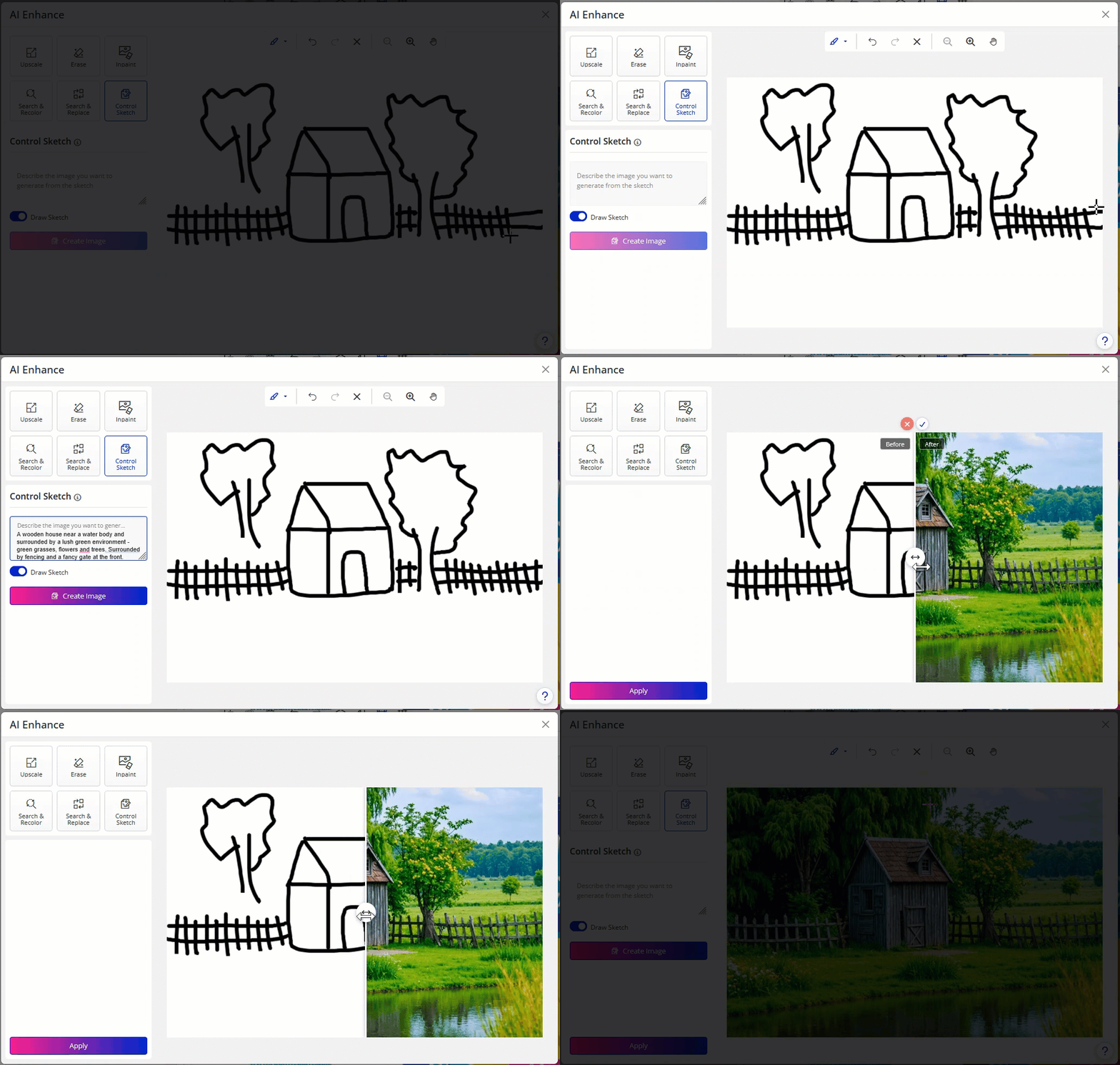
Control Sketch
Control Sketch enables you to transform rough sketches into refined visuals. Upload your sketch, provide a prompt describing the final output, and the system generates a polished image.
Inpaint
Inpaint helps you make precise edits to specific areas of an image. You can select a portion of the image and describe the change you want, and only that selected area will be updated.
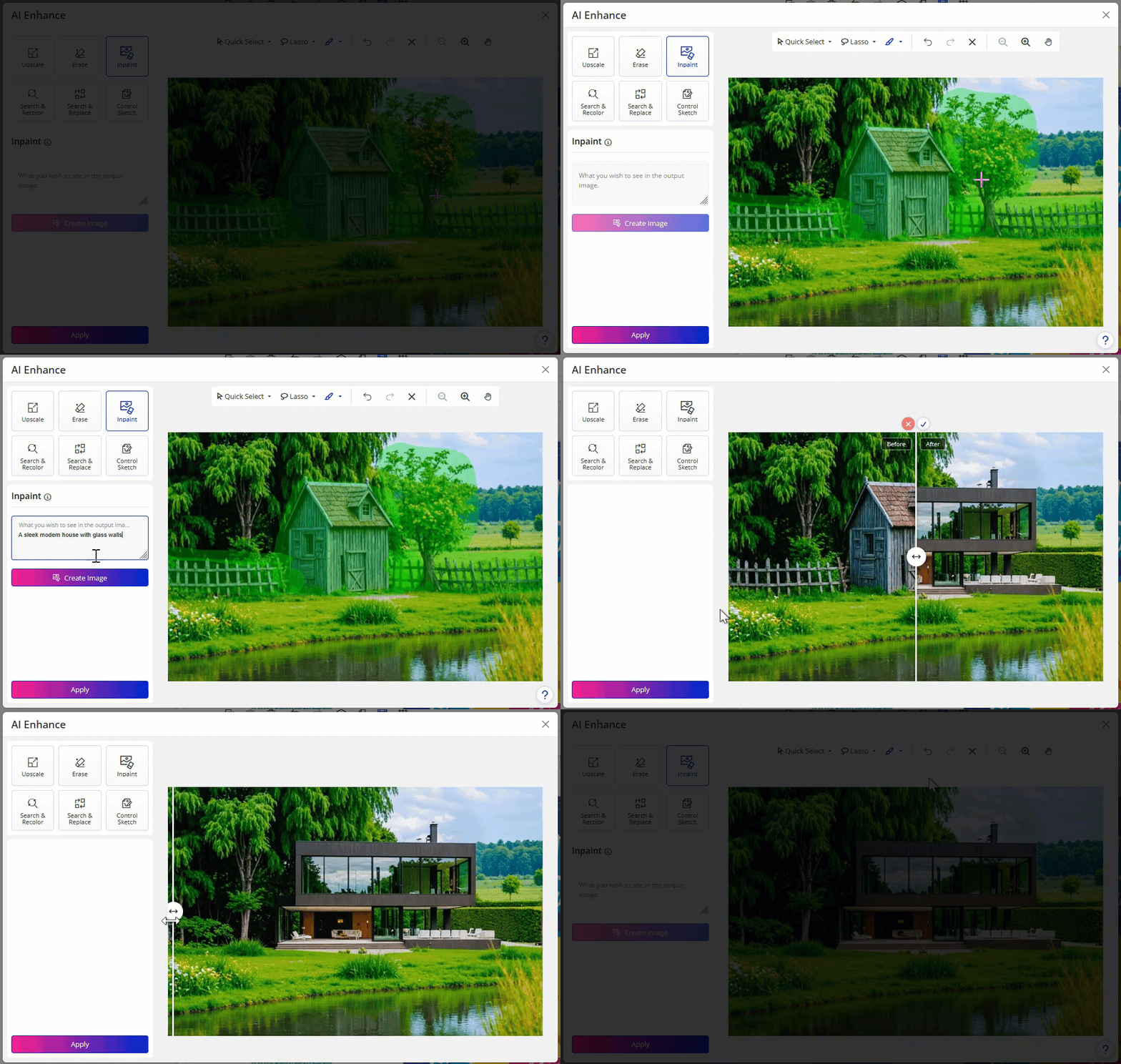
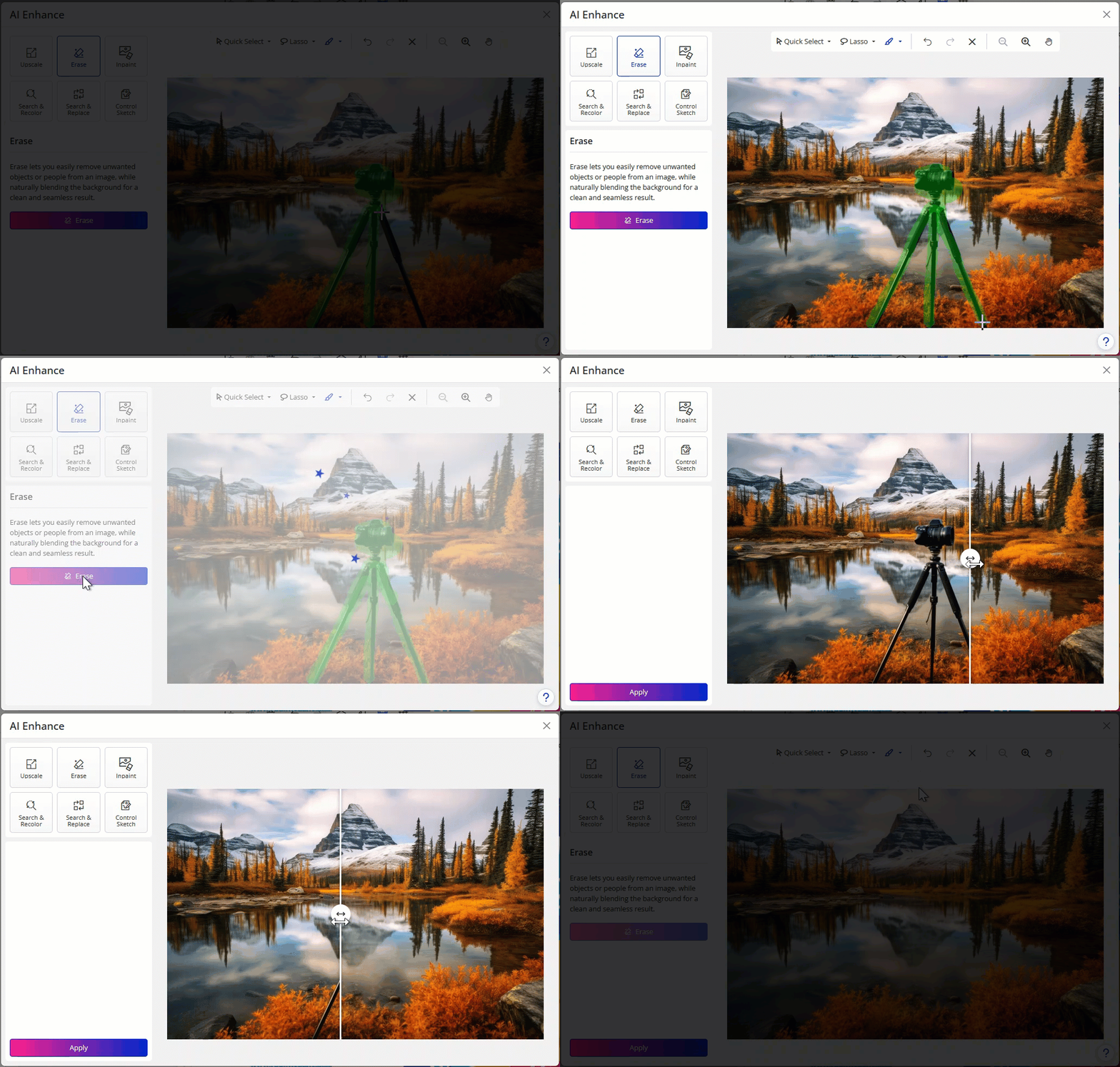
Erase Object
With Erase Object, you can remove unwanted elements by simply brushing over them. The system intelligently fills the removed area to blend naturally with the surrounding image.
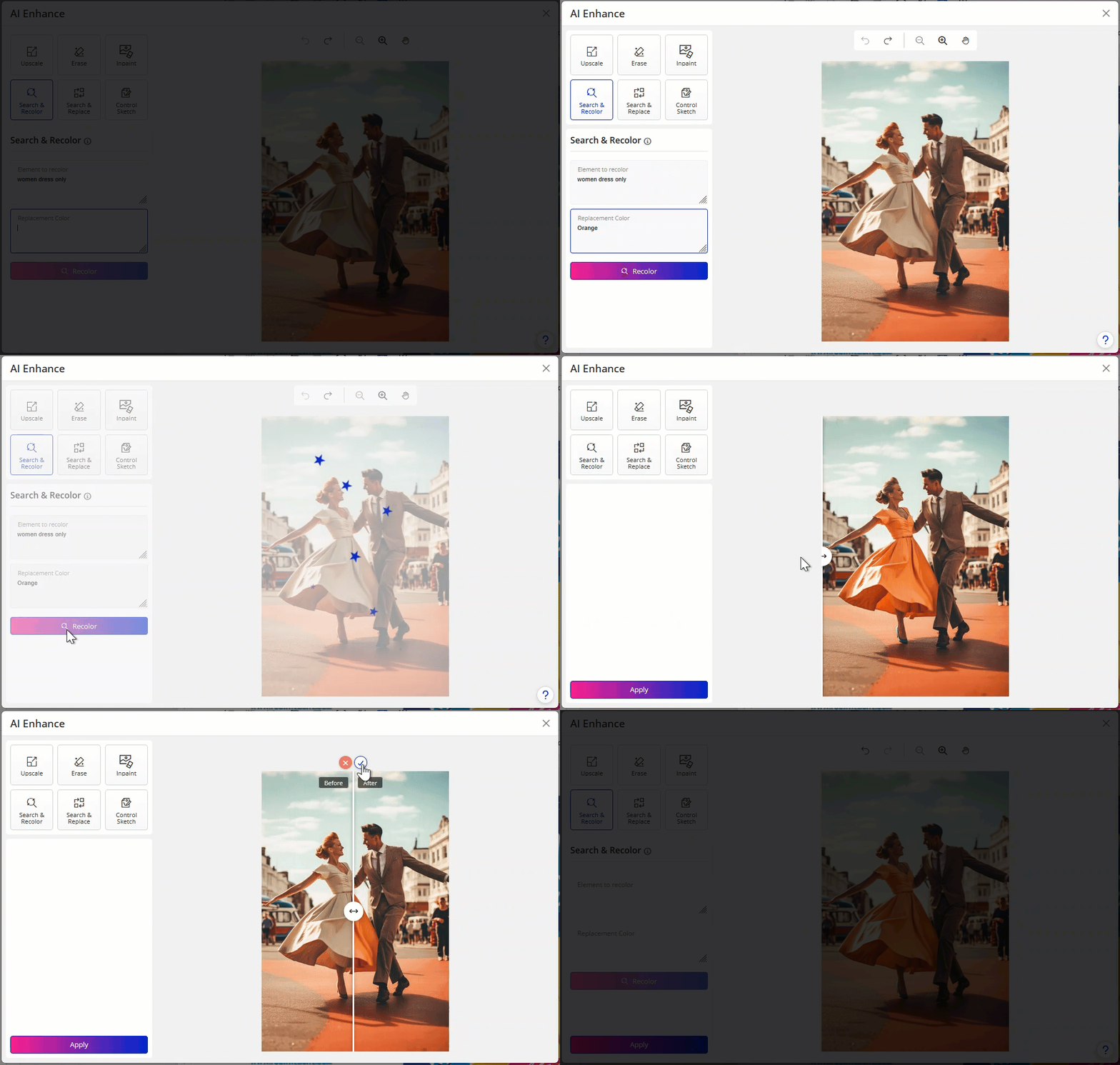
Search and Recolor
This tool allows you to change the color of specific elements using text prompts. Simply describe the object and the desired color, and the system will update it accordingly.
How to Enable AI Image Editing (Admin Setup)
To make these AI image editing tools available, navigate to Designer Studio Settings in the admin panel and search for the AI Image Editing Services setting:
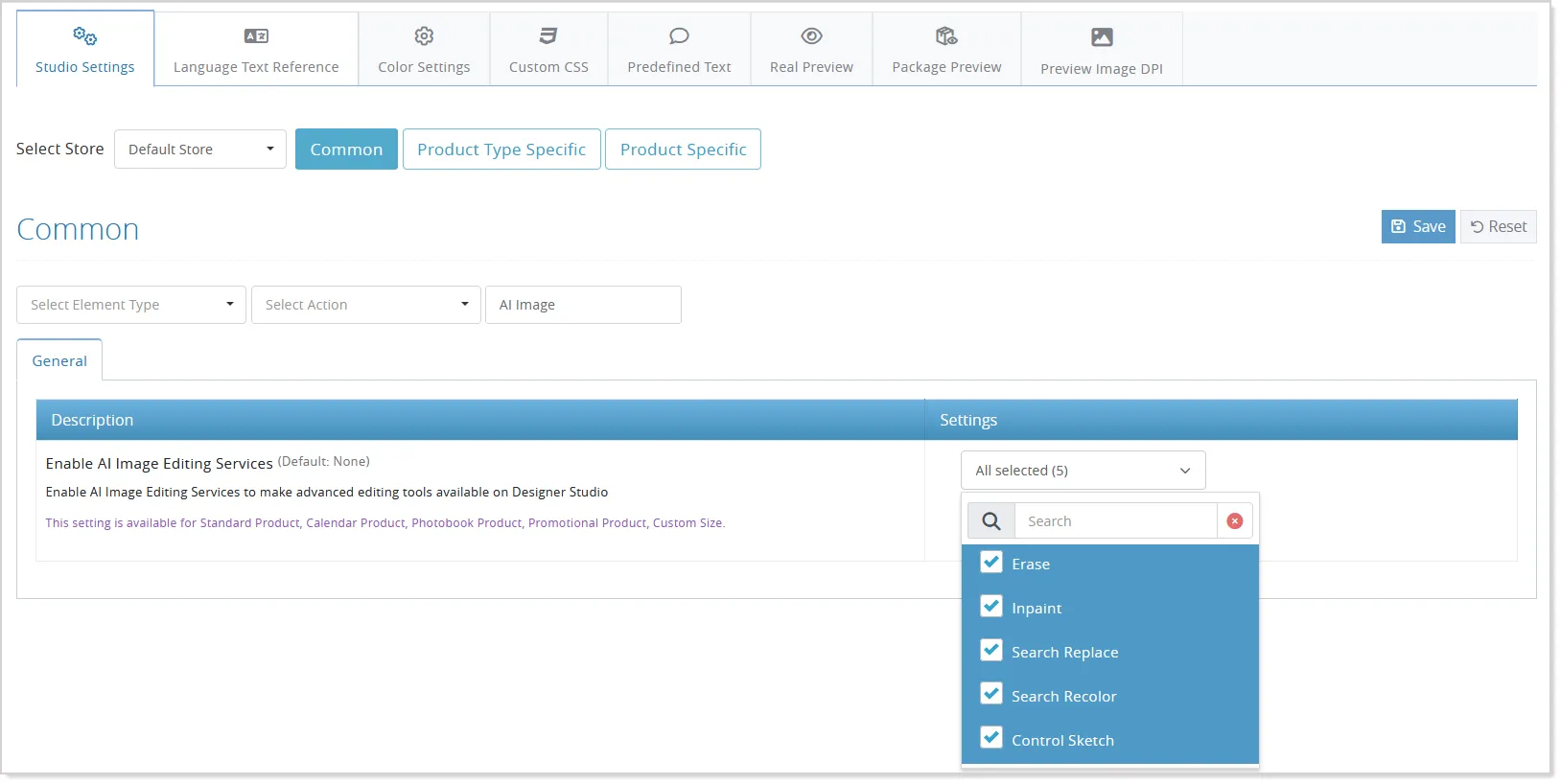
Now, select the required tools such as Search & Replace, Inpaint, Erase Object, Recolor, and Control Sketch, and then save the settings.
Multi-Block QR Code Support with Flexible Formatting
QR code capabilities have been enhanced to support multiple linked data blocks within a single QR code, making QR content management more flexible and easier to maintain.
Users can now connect multiple fields, such as office name, address, city, state, ZIP code, and other personalization details, directly to the QR code content instead of combining everything into a single block:
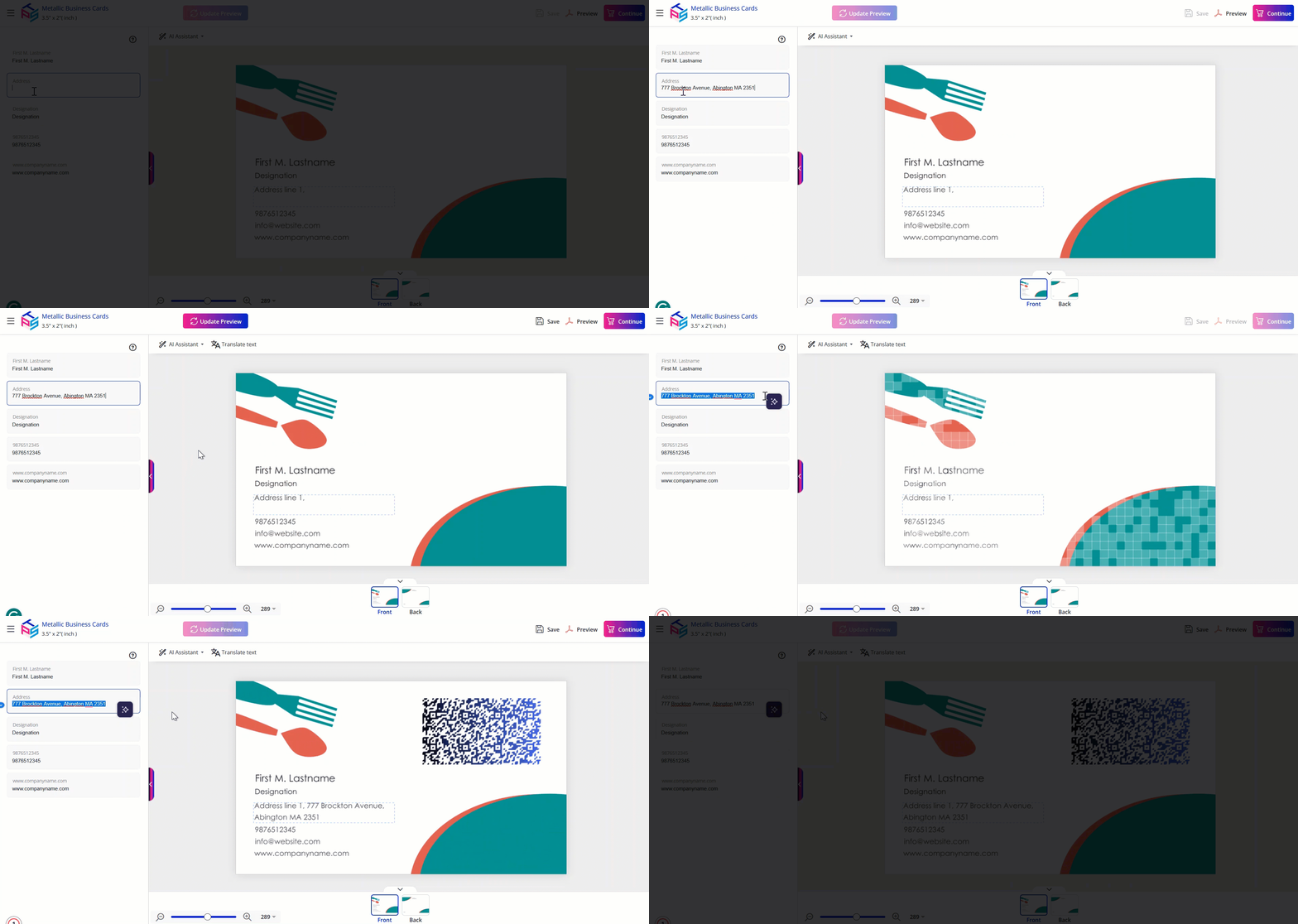
Admins can manage this by combining different blocks for generating the QR code in the studio:
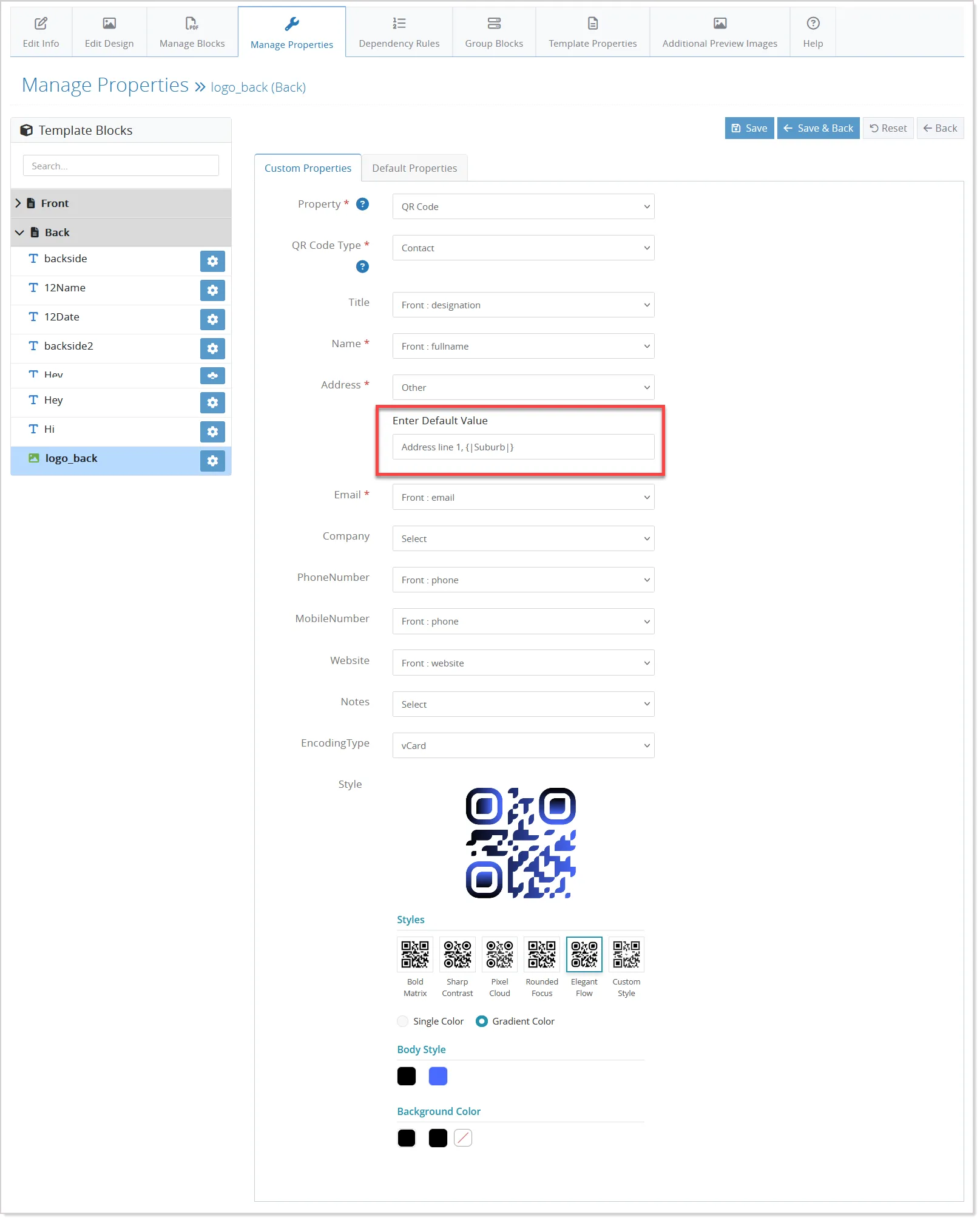
- Additional improvements include QR code generation after auto-fill of customer and personalization details, along with support for transparent QR code backgrounds for greater design flexibility
Support has also been introduced for configurable text formatting patterns and reusable text styles, including uppercase, lowercase, and title case formatting for QR-related text blocks:
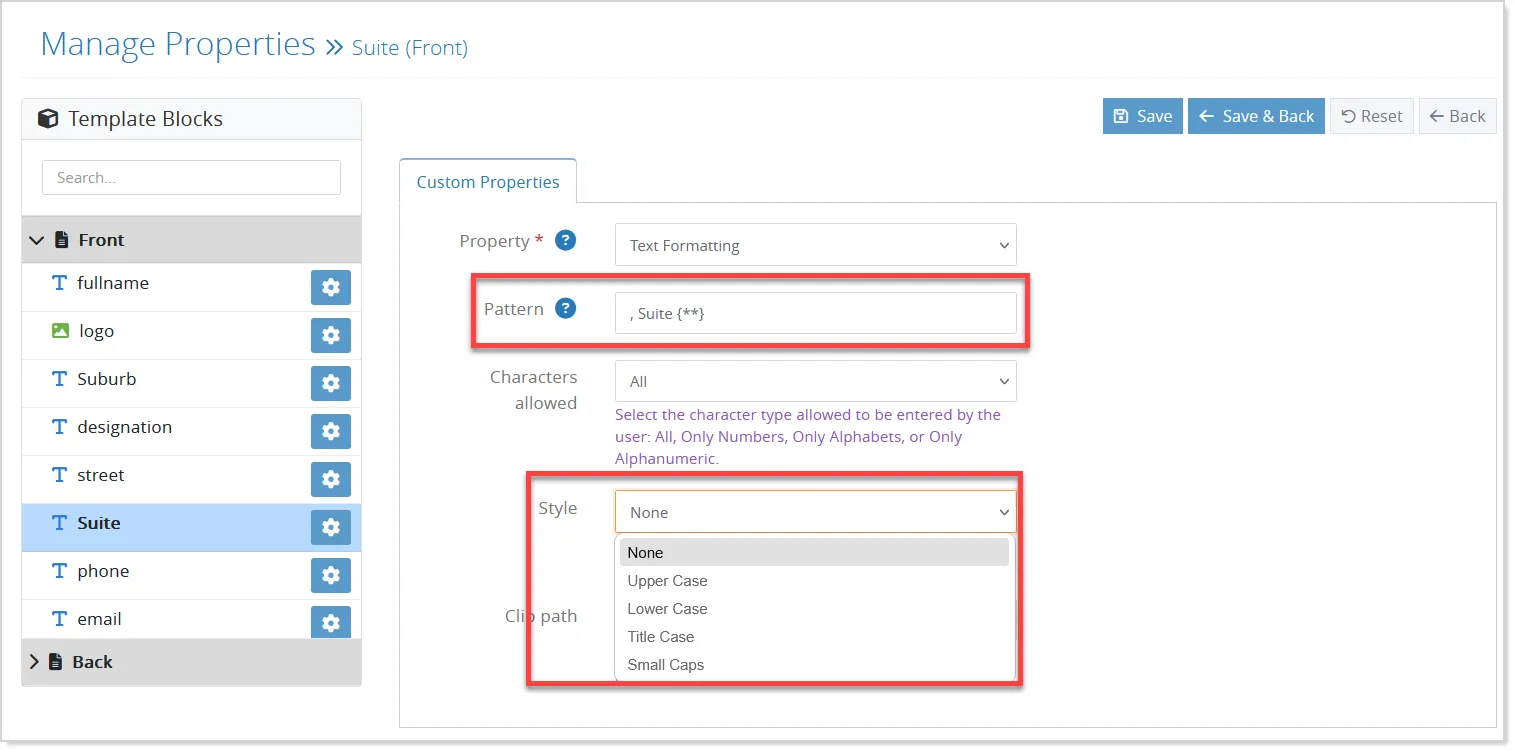
This helps maintain consistency across designs while keeping formatting editable throughout the design lifecycle.
Minor Enhancements
Finishing Studio Event Support in Master Product Options
You can now configure Studio Event – Finishing options such as Spot UV, Emboss, Deboss, Foil Color, and Foil Pages directly within Master Options:
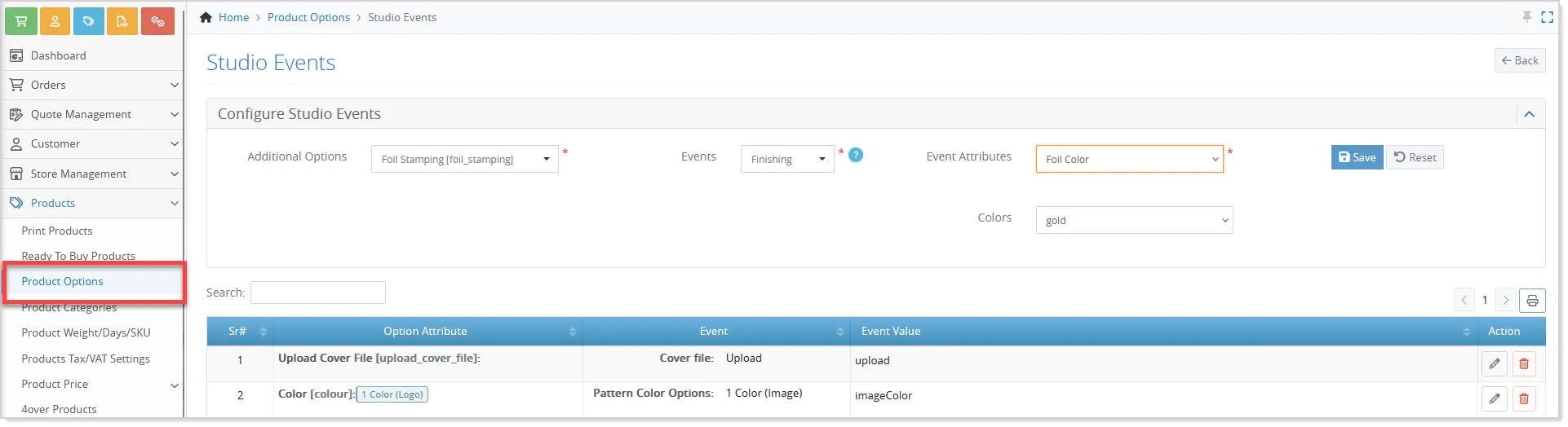
Once defined, these options can be linked to multiple products via the Assign Product Options functionality.
This enhancement reduces manual work and makes it easier to manage finishing options across your product catalog.
Zoom Control in Quick Design for Promotional Products
A zoom functionality is now available in Quick Design Mode for promotional products, making it easier to view and work on small printable areas.
Users can use the zoom functionality below the canvas to zoom in and out, allowing better visibility and more precise design placement:
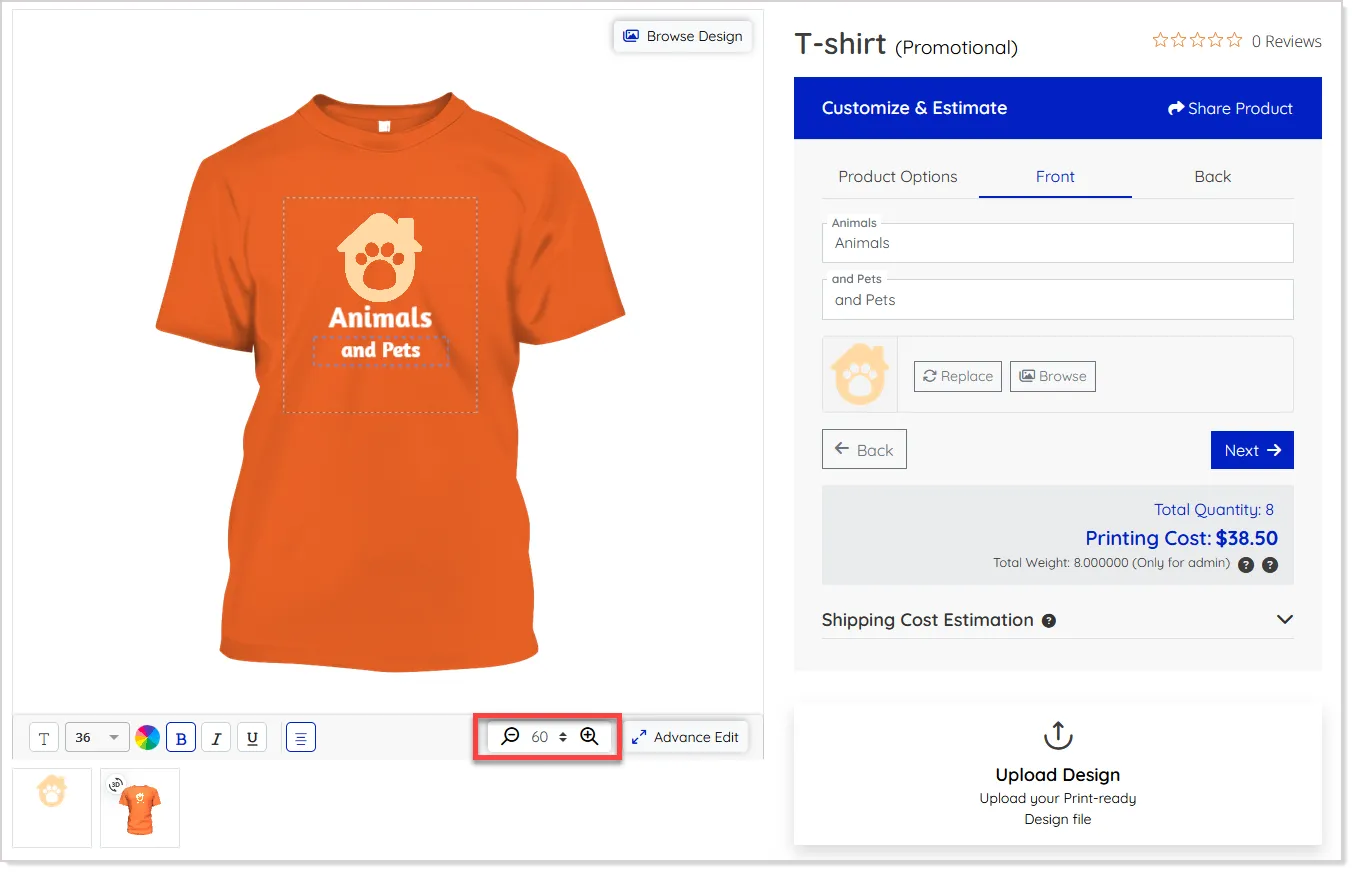
The zoom resets to default when switching between Quick and Advanced Studio, and this feature is available only for promotional products in Quick Design Mode.
Apply Styles to Grouped Objects with Ease
Applying styles to multiple objects on the canvas is now faster and more efficient with enhanced group property controls in Designer Studio.
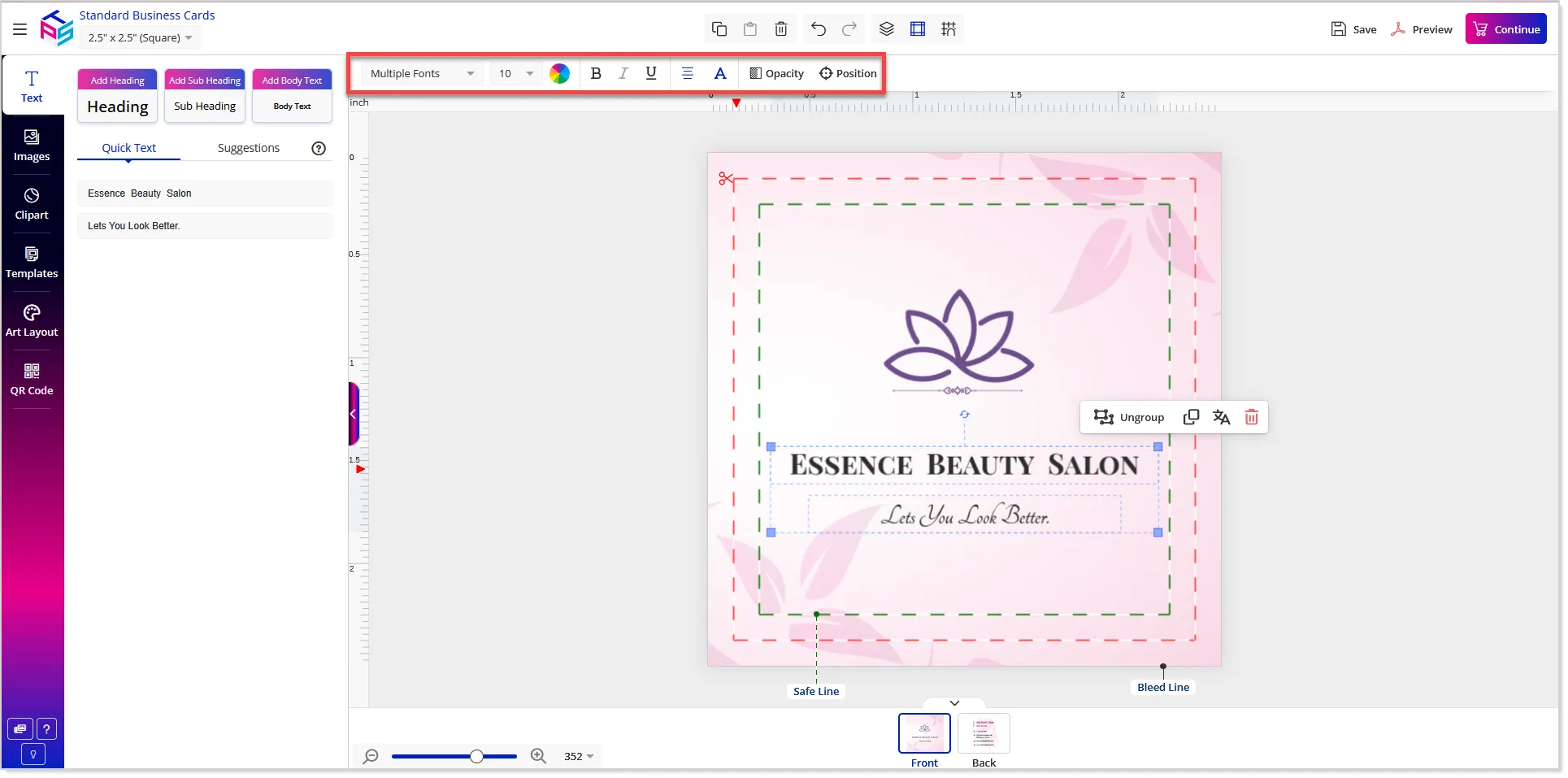
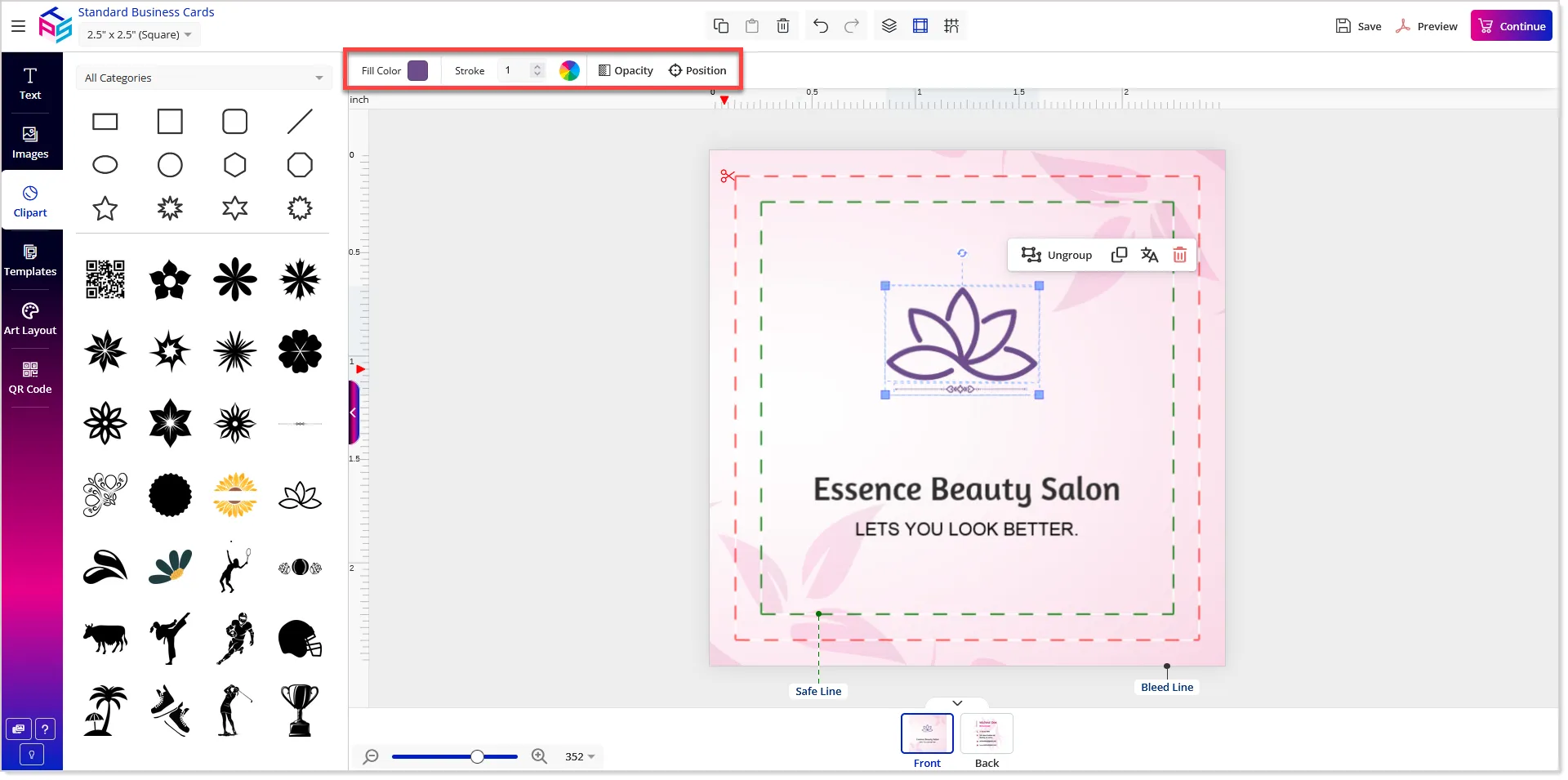
When multiple objects, such as textboxes, shapes, or cliparts, are grouped, the property panel now displays additional styling options based on the type of elements selected. This allows users to update common properties like color, font, stroke, and formatting for all grouped objects at once, instead of editing each item individually.
- Grouping all textboxes enables controls like font family, size, alignment, and styling:
- Grouping shapes or cliparts allows updates to fill color, stroke, and more:
- Even mixed groups support common properties like fill color, opacity, and position.
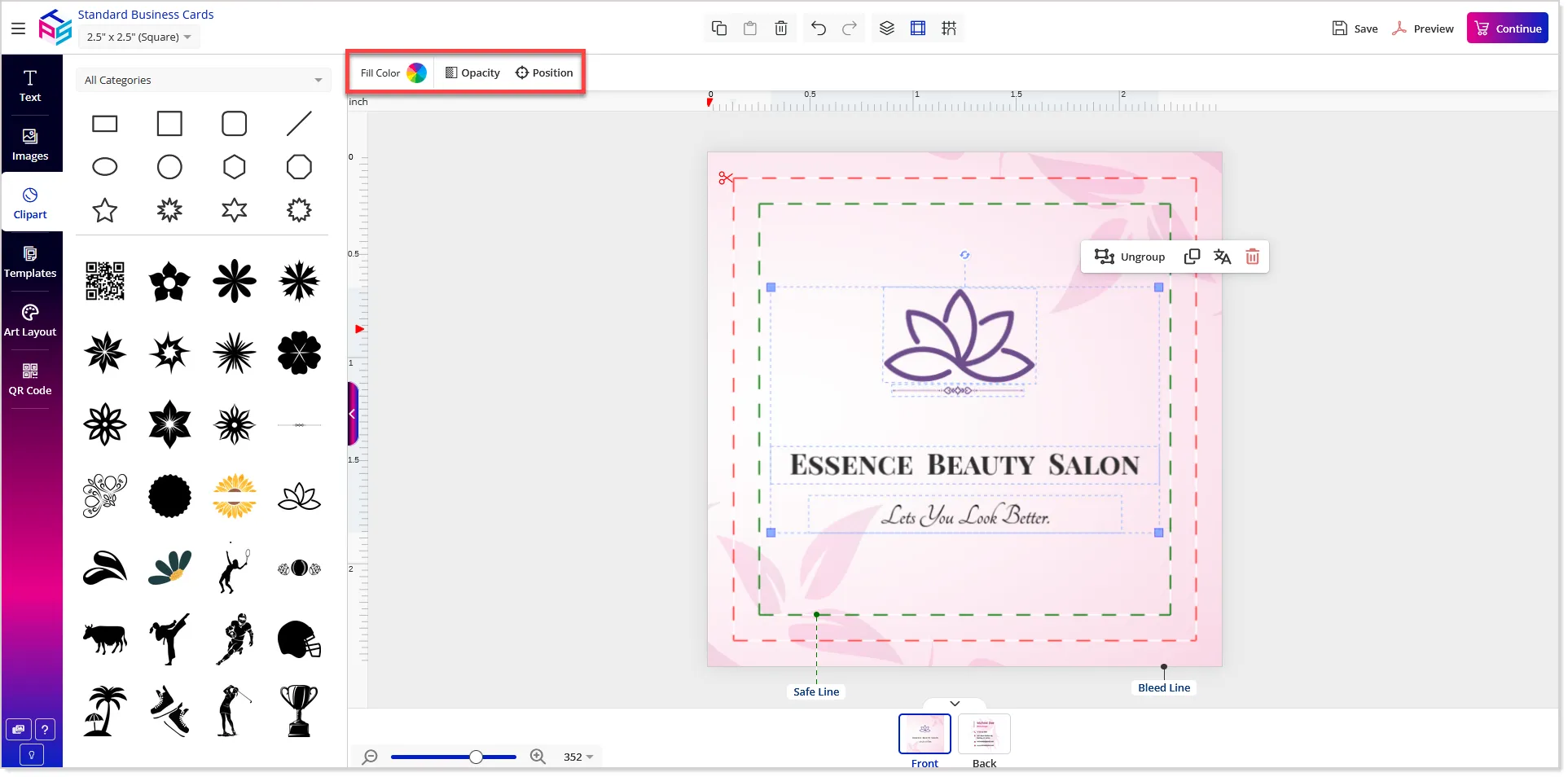
This enhancement simplifies bulk editing, saves time, and improves the overall design experience on the canvas.
Set Default Accordion View for Group Blocks in PDF Templates
Control over group block visibility is now available in PDF Block Templates, making content presentation more flexible and user-friendly.
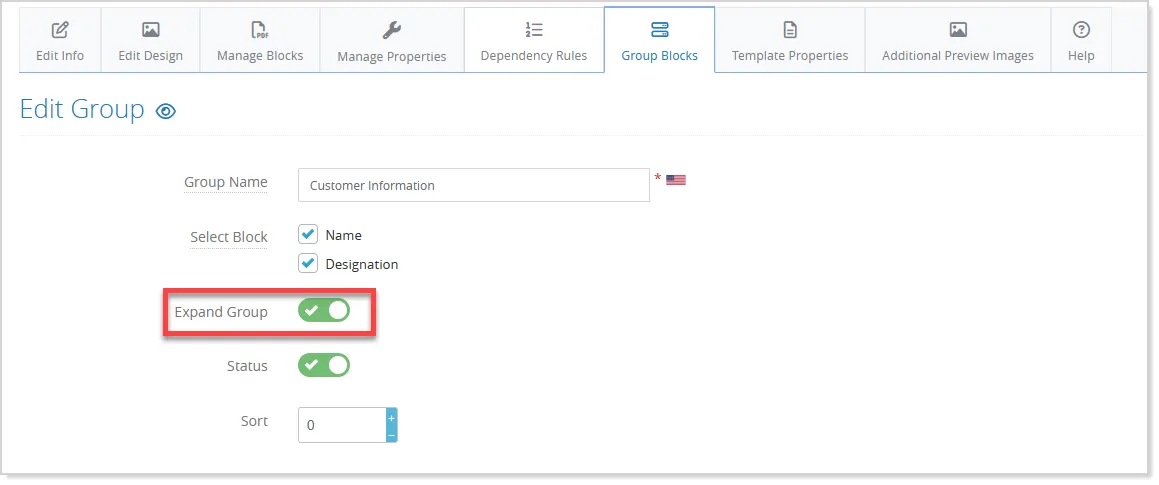
Admins can now choose whether each group block accordion should be expanded or collapsed by default in the respective block template using the Expand Group setting available in the Add/Edit Group Blocks screen:
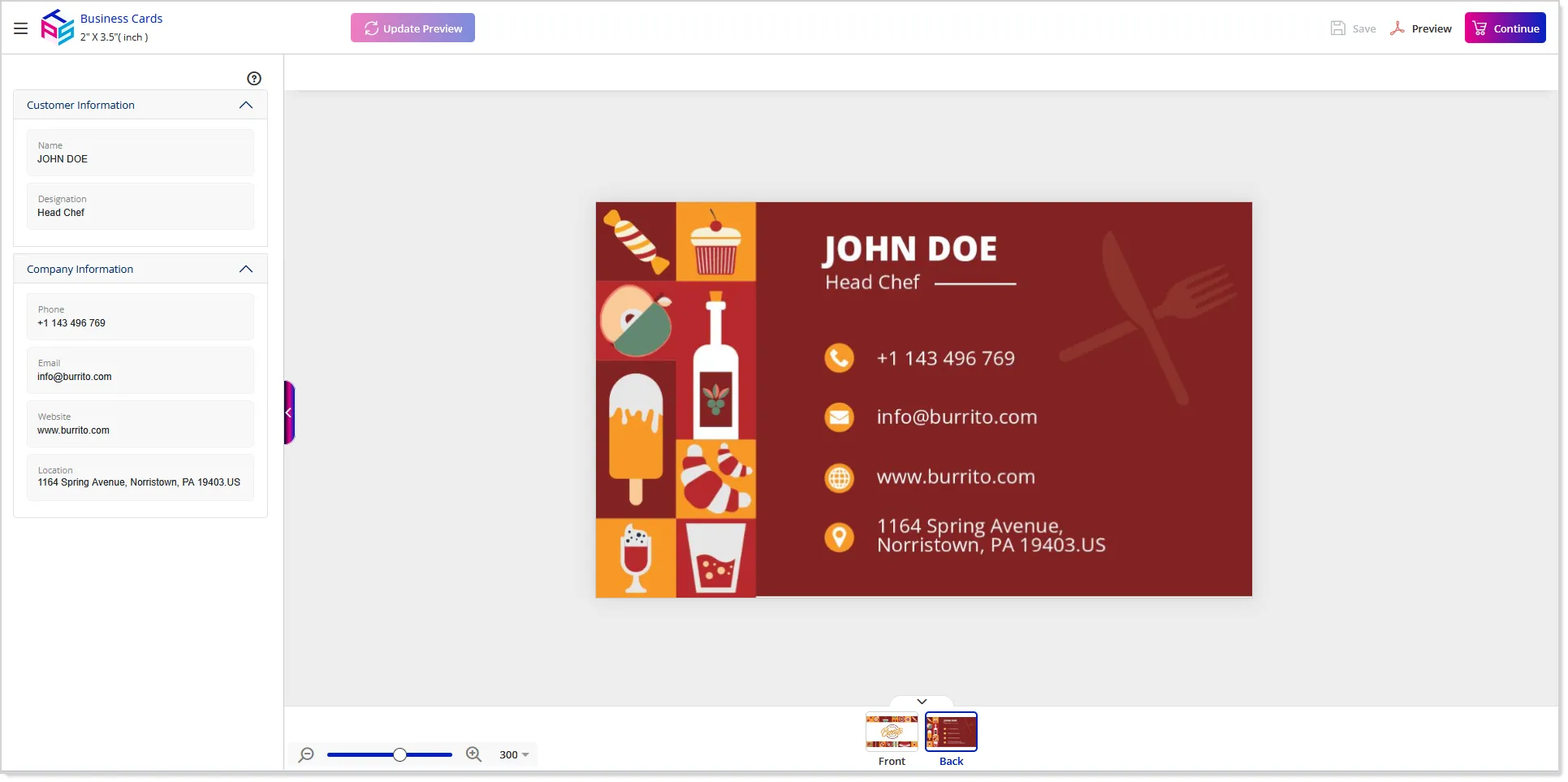
This allows important sections to be visible upfront in the block studio, while less critical content can remain collapsed for a cleaner layout:
This enhancement improves readability, prioritization of content, and overall user experience in PDF templates.
Dynamic Auto-Resize Support for 2D Product Previews
Dynamic auto-resize support has been introduced for 2D product previews, allowing preview designs to automatically scale according to the selected product dimensions. Earlier, previews were displayed within a fixed area, which could result in inaccurate visualization when customers selected different product sizes.
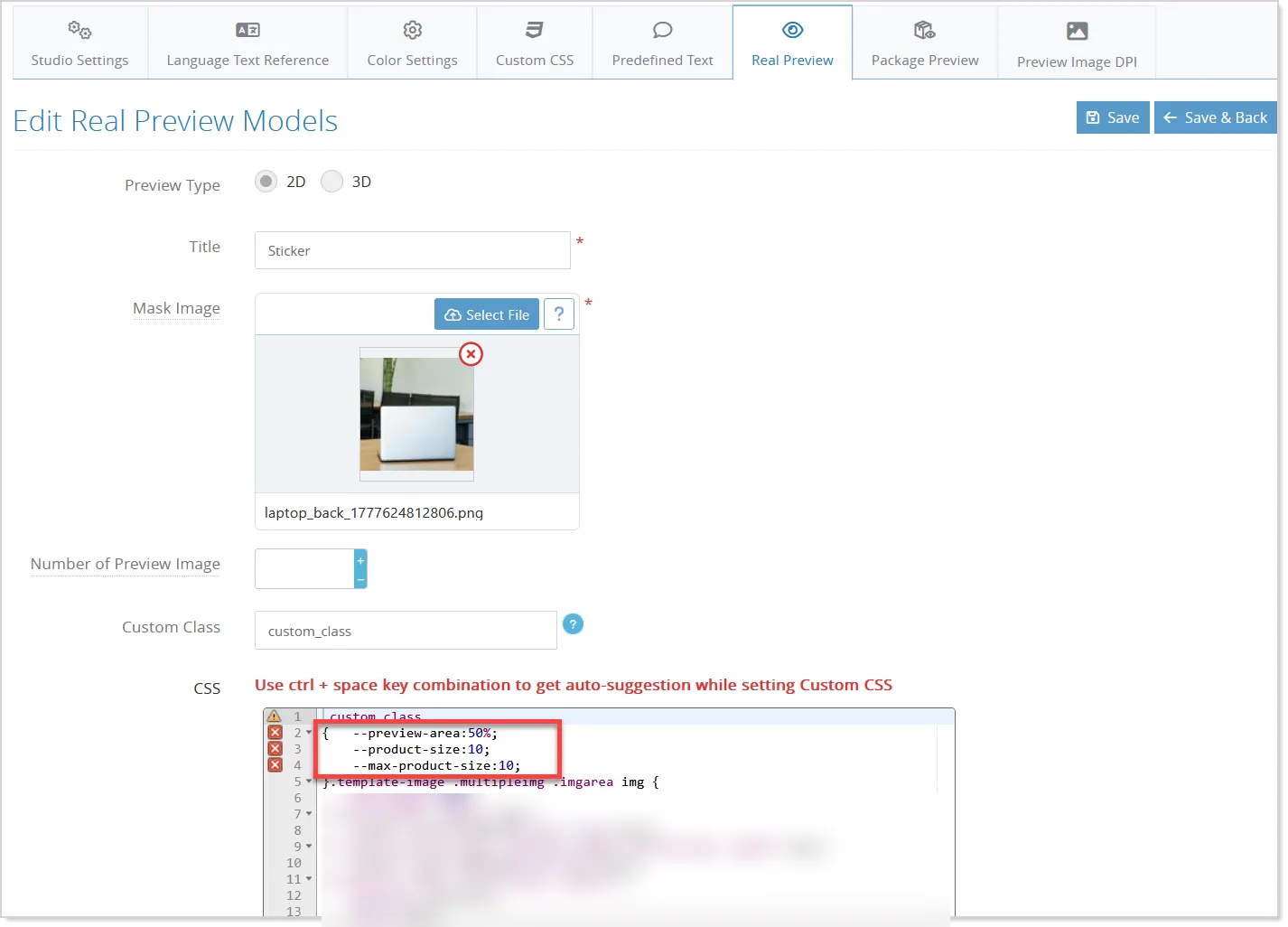
With this enhancement, admins can now configure custom CSS variables and upload mask/background images to control how previews behave for different product dimensions:
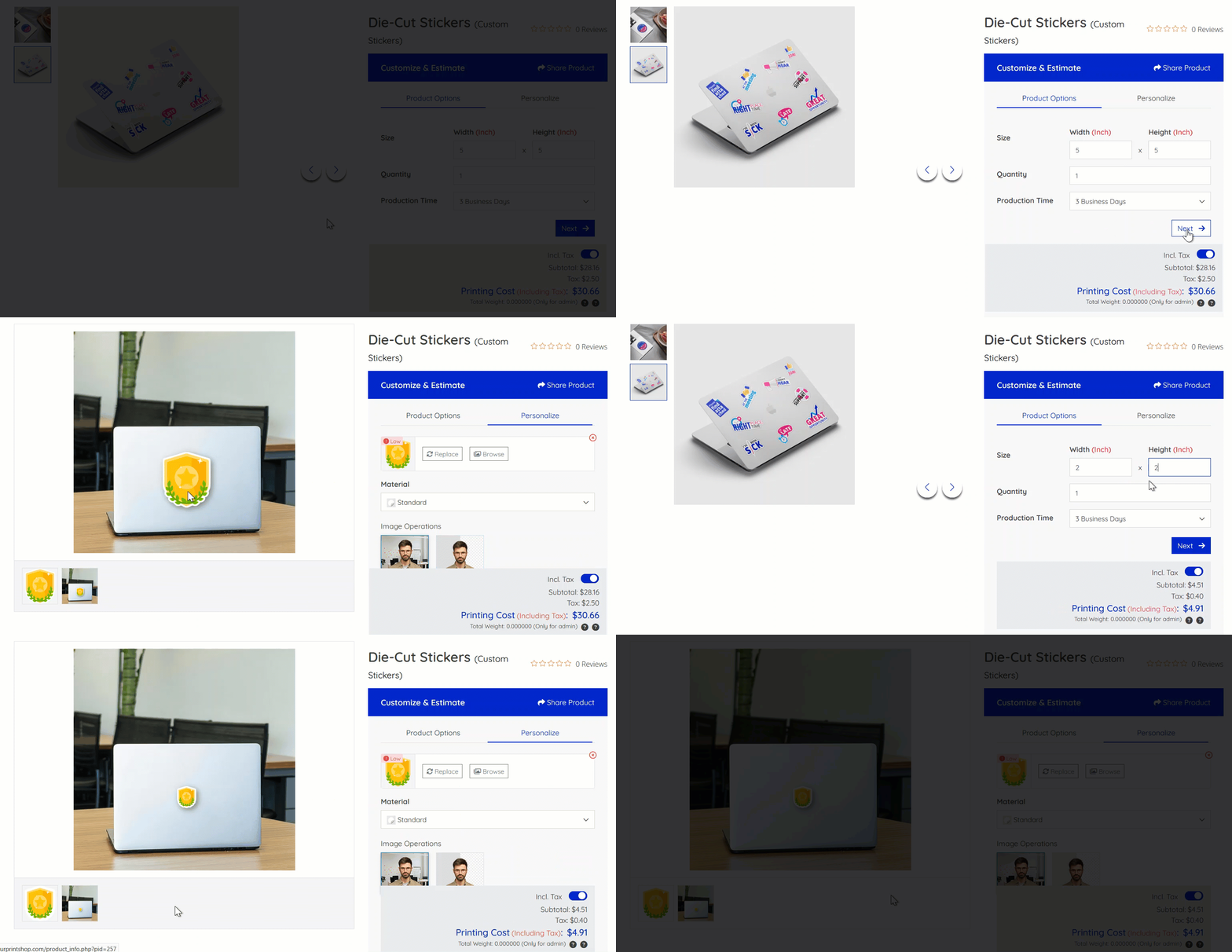
At the storefront, when the customers select larger or smaller sizes, the 2D preview automatically adjusts its scale based on the configured settings:
The enhancement helps deliver a more realistic and proportional product preview experience, especially for products with variable dimensions such as stickers, signage, labels, and custom-shaped products.
Multi-Color Support for Real Preview 3D Models
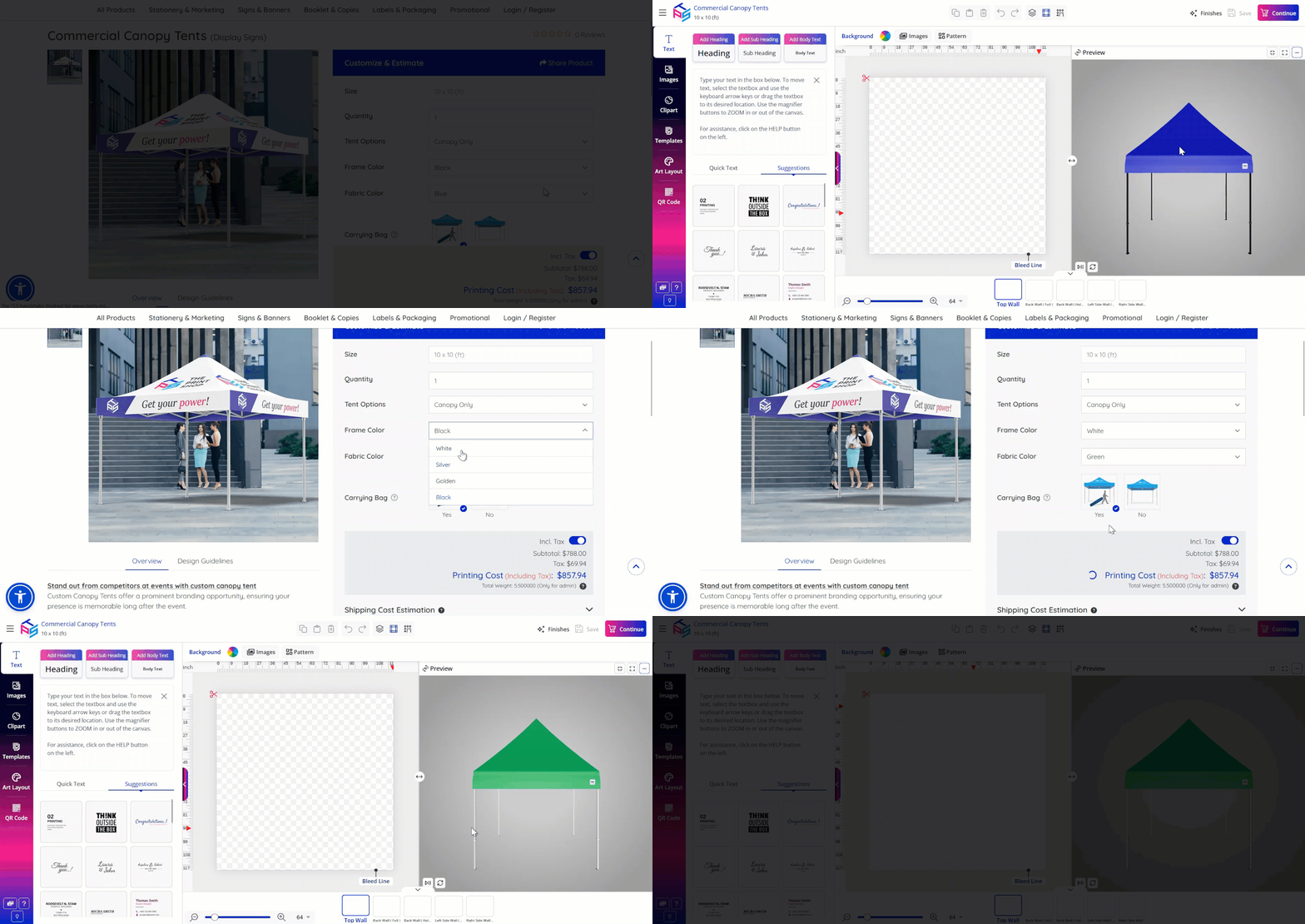
Multi-color support has been introduced for Real Preview GLTF models, allowing multiple customizable materials within a 3D model to respond dynamically to selected colors.
With this enhancement, different materials within the same 3D model, such as fabric, frame, panels, or accessories, can now be individually mapped and configured for color changes. This enables more realistic product previews and improves visualization accuracy for products like tents, caps, promotional items, and other multi-material products.
A new Studio Event configuration has also been introduced, allowing admins to bind specific material names with corresponding color mappings:
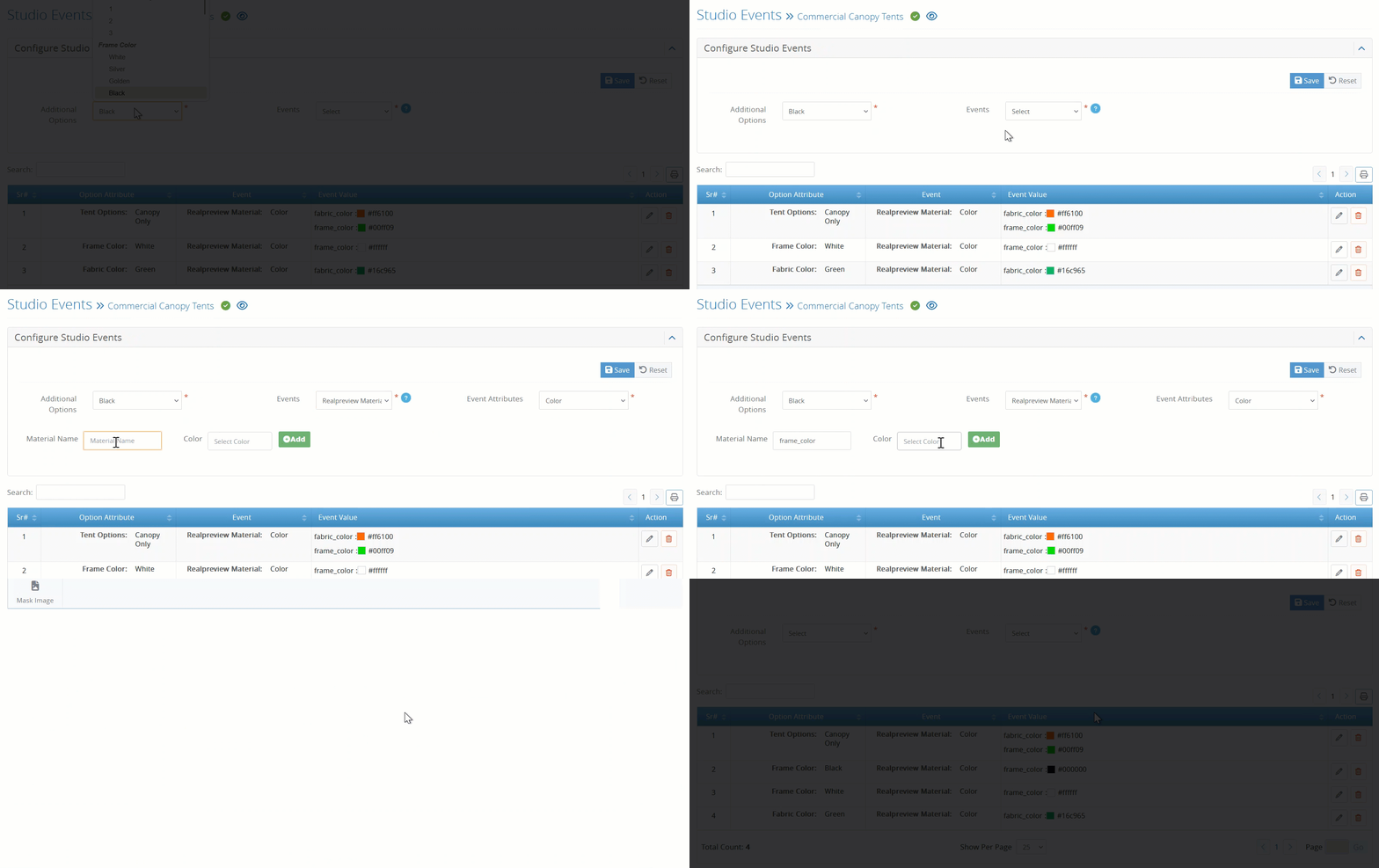
Multiple material-color combinations can now be associated with a single option, providing greater flexibility while configuring standard products, promotional products, quick studio products, and pattern products.
On the storefront, whenever customers select an option associated with these Studio Events, the mapped colors are automatically applied to the respective GLTF model materials, delivering a more interactive and realistic 3D preview experience:
Color Name Support for Color Picker
Designer Studio Color Picker usability has been improved by displaying human-readable color names on swatch hover instead of only showing hex codes. This enhancement makes color selection more intuitive and user-friendly, especially for non-technical users.
To provide better flexibility and control, a new Color Name field has also been added in the admin panel alongside the existing Color Palette hex input:
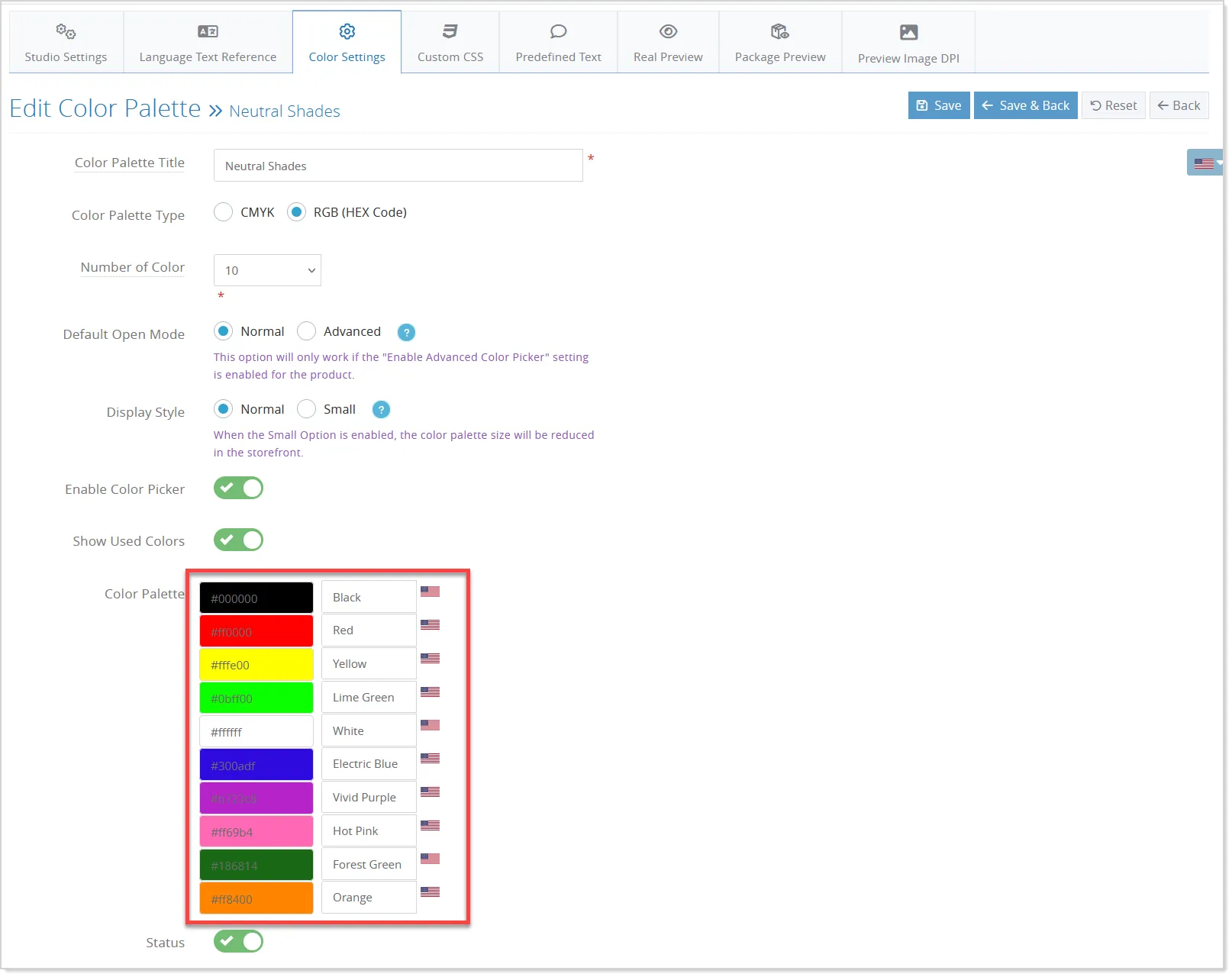
Admins can now define custom color names for each swatch, which will be displayed as tooltip text in the Designer Studio:
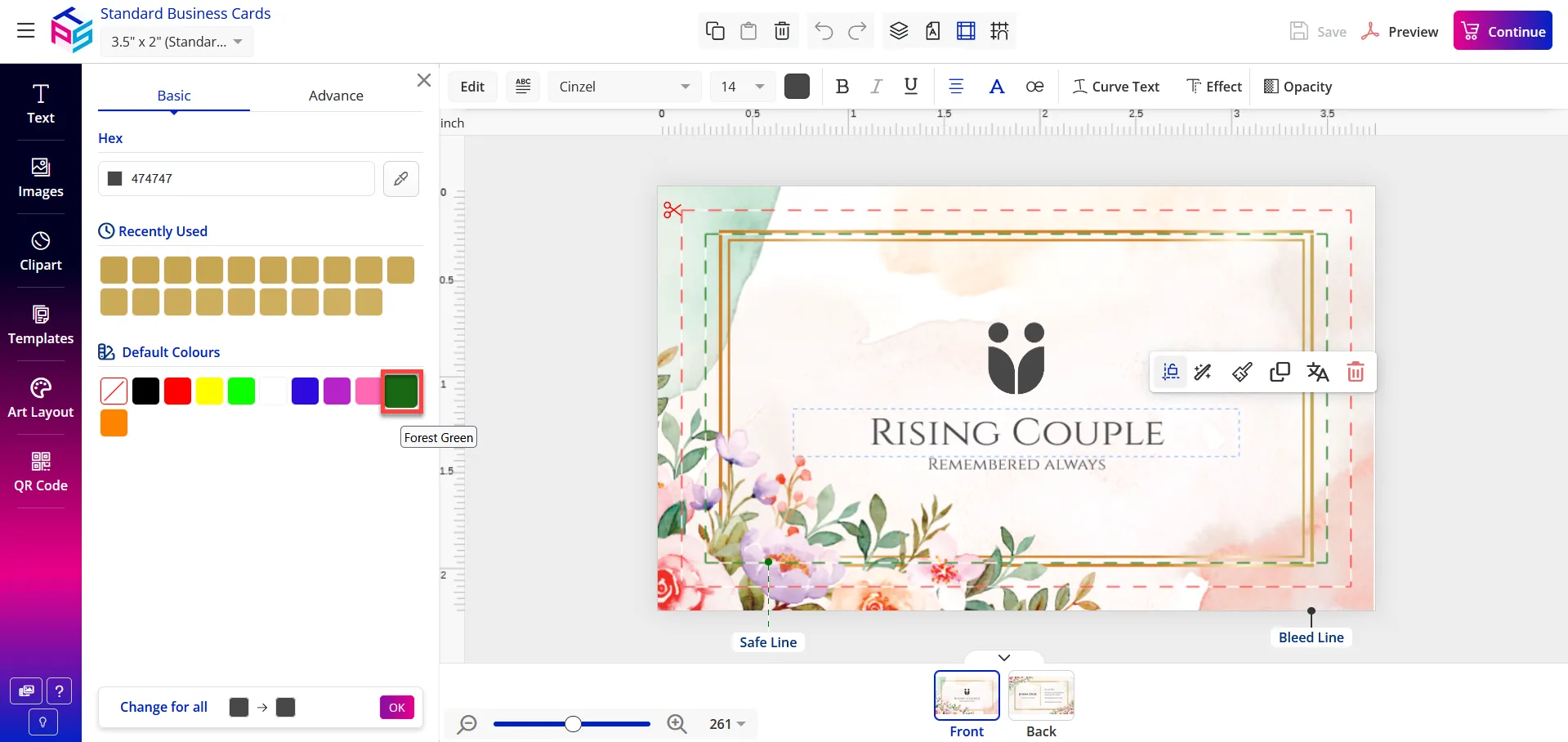
If a color name is not configured, the system will continue to display the hex code as a fallback.